
Check Email Security Using CheckTLS: A Comprehensive Non-Technical Reference
TL;DR; Step-by-step instructions for using CheckTLS to test the security technoogies of email systems including TLS, DNSSEC, FCrDNS, MTA-STS, DANE,SPF, DKIM, DMARC, and BIMI.
Copies of real test results are included with interactive highlighting that you turn on and off to see the specifics of each technology.
Instructions are provided to run ("TestReceiver") to test:
Instructions are provided to run ("TestSender") to test:
The results with highlighting are at the bottom of this post, which can be opened in a second tab positioned side-by-side with this page so you can see the highlighting turn on and off as you read. See Viewing CheckTLS Test Results below for infomation about this second window.
How CheckTLS Tests are Organized
Each CheckTLS test is associated with one of two email "modes" — sending email or receiving email (the exceptions to this rule are the TLS, the DNSSEC, and the FCrDNS tests, which are associated with both email modes). CheckTLS has labeled the two modes "TestReceiver" and "TestSender". TestReceiver tests the security of receiving email servers. TestSender tests the security of sending email servers.
These two test modes (TestReceiver and Testsender) each test multiple Email Security Technologies. The technologies are shown below, and each technology is linked to a detailed explanation, below, of how a test mode (TestReceiver or TestSender) tests that technology and the results that the testing produces.
To help CheckTLS users remember whether they are testing a receiving email server or a sending email server, the testing options listed when the CheckTLS website's "email" main menu item is clicked are labeled "testTo:" for TestReceiver tests (the user is testing the server that receives email sent To: it), and labeled "TestFrom:" for TestSender tests (the user is testing the server that sends email sent From: it).
How to Run the TestReceiver CheckTLS Tests
When you select "TestTo:" option from the CheckTLS website's "email" main menu item, you are brought to the TestReceiver webpage. The "Input Fields" dialog box, shown below, is where you specify and configure which technologies you want TestReceiver to test in the receiving email server (the "eMail Target:" in the dialog box). Clicking the "More Options (MTA-STS, ...)" text expands the dialog box to display all of the TestReceiver tests that can be performed when the "Run Test" button is clicked.

Only the upper portion of the expanded "More Options (MTA-STS, ...)" is shown in the image above — there are many more options that can be included when you run TestReceiver. When you expand the "More Options (MTA-STS, ...)" you won't see an option to test TLS. That is because the TestReceiver automatically tests TLS every time it is run. Before you run TestReceiver, be sure that you have entered an email domain (preferred), a full email address (e.g. user@company.com), or an individual email server (hostname or ip address) in the "eMail Target" entry line. Leave the "Output Format" set to "Detail" so that you can view all of the results that get returned when TestReceiver is run. If you want to understand what each Input Field Option means and how it is used, click the "Instructions/Info" link located above the "Input Fields" label. A link to the complete documentation for TestReceiver will be provided.
THE RESULTS OF YOUR TestReceiver TESTING WILL BE DISPLAYED ON-SCREEN IN THE SECTION OF THE WEBPAGE LABELED "Test Results".
How to Run the TestSender CheckTLS Tests
When you select the "testFrom:" from the CheckTLS website's "email" main menu item you are brought to the TestSender webpage. The "Input Fields" dialog box, shown below, is where you specify and configure which technologies you want TestSender to test in your email server.
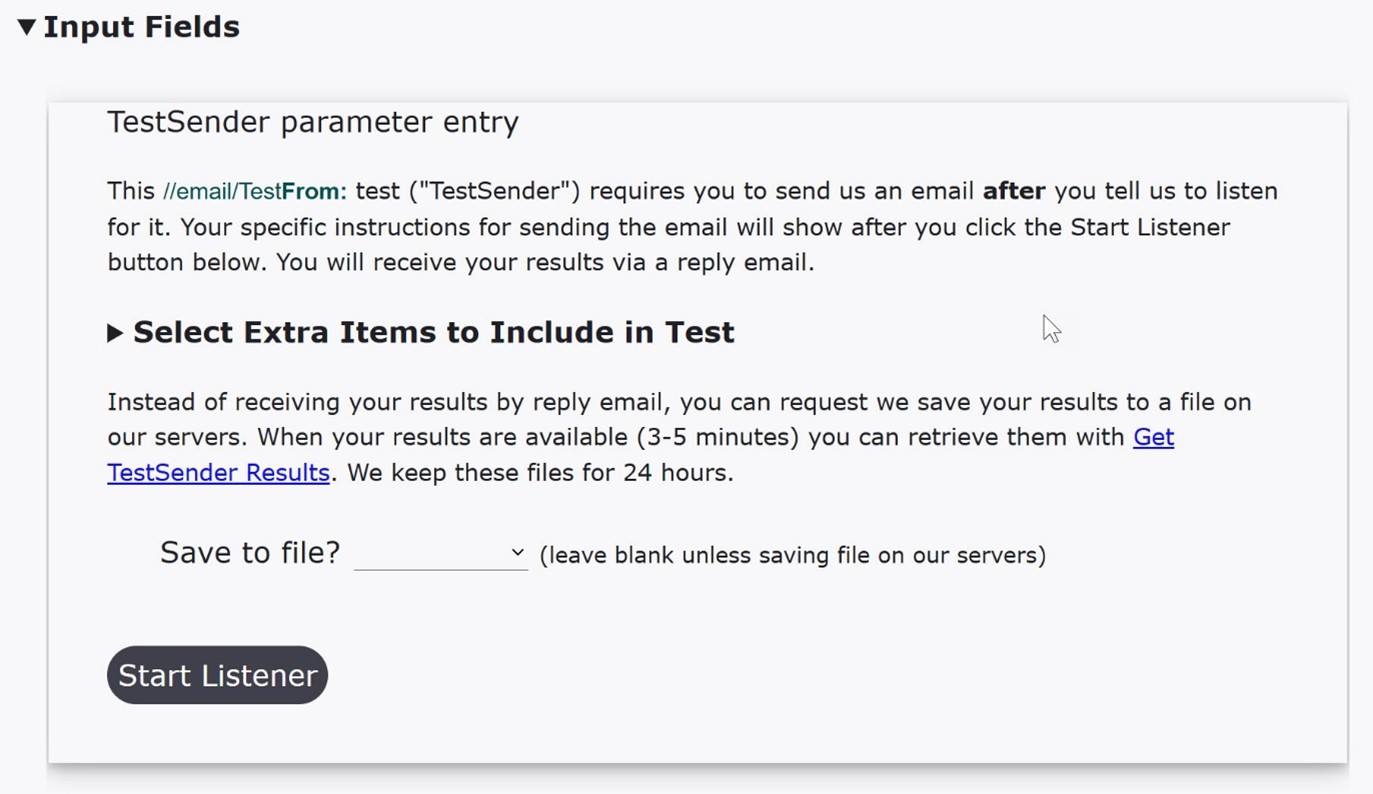
Because TestSender tests the security of your email server, there is no eMail Target: entry line for TestSender (like there is for TestReceiver tests). The "target" of TestSender tests is your sending email server. In order for CheckTLS to be able to test the security of your email server, you must send us a specially-crafted email using an email account on the email server whose security you wish to test. If you have multiple sending email servers, you must run TestSender tests, and therefor send us an email, from each server. Like TestReceiver, TestSender automatically tests the status of TLS. Clicking the "Select Extra Items to Include in Test" text displays a list of individual Email Security Technologies that can be tested with each TestSender run.

In the image above, TestSender will display results for the selected TLS, SPF, DKIM, DMARC, FCrDNS, BIMI, and DNSSEC technologies. The technologies you select are specified in the specially-crafted email (explanation of the email is in the next paragraph) that you send to us that initiates TestSender testing. Once a TestSender test has completed, we send the result of the test back to you in a Reply email. If you want to understand what each Input Field Extra Item means and how it is used, click the "Instruction/Info" link located above the "Input Fields" label. A link to the complete documentation for TestSender will be provided.
What is the Listener and why do I have to start it? The Listener is started on our CheckTLS TestSender servers, not on your email server. It listens for the specially-crafted email that you send to our TestSender servers. When you send the specially-crafted email, our Listener detects that the your email is being transmitted to us and we perform the TestSender tests. We use the information contained in the email to tell us how to report the results of our tests back to you. When you click the "Start Listener" button, two things happen:
- The Listener is started on our CheckTLS TestSender servers
- Instructions for creating the specially-crafted email are displayed on your computer (you may have to scroll down to view the instructions)
If your MAILTO: app has been associated with an email client, you can create the specially-crafted email automatically by clicking the "Click here to create the email" text near the bottom of the instructions. This will automatically start a new email and pre-populate it with the correct specially-crafted message, which will include:
- From:
- set to your default email account
- To:
- set to test@TestSender.CheckTLS.com
- Subject:
- unique password for just this one test
- text strings
- that indicate the "Select Extra Items to Include"
- default body text
- "This is a test message."
This is the specially-crafted email.
NOTE: If you have not associated an email client with MAILTO: links on webpages, some versions of Windows will automatically associate your Microsoft account email address with MAILTO: links on webpages if you click any MAILTO: link, including our "Click here to create the email" link.
If you do not want to use this default association, you can change the MAILTO: app to another email client by navigating to Settings>Apps>Default apps>Choose defaults by link type. Scroll down to the MAILTO: tile and click it.
If you do not have an email client associated with MAILTO: links on webpages, you will need to create the specially-crafted email manually. Start a new email that will be sent from an email account on the email server you want TestSender to test (the "From:" address in your email). Use the exact same values displayed in the instructions for the To:, Subject:, and email body.
When your specially-crafted email is complete, SEND it. Check your inbox in a minute or two for a Reply from our TestSender server with the results of your TestSender test. If the Reply email doesn't show up in your inbox, check your spam folder (and whitelist CheckTLS in the future if you know how). If the email does not show up anywhere, you can see if your email system "bounced" our results message by clicking the "HERE" link in the "check your logs for a bounce from your domain HERE" text at the very bottom of the instructions for creating the specially-crafted email page.
Viewing CheckTLS Test Results
Located at the end of this blog post are examples of the results produced by TestReceiver and TestSenter tests for the checktls.com website. We've included these example test results so that you can see exactly what your test results will look like (obviously with your data). As a reminder, the test results for TestReceiver tests will be presented on-screen shortly after you click the "Run Test" button. The test results for TestSender tests will not be displayed on-screen but will be retuned to you in a Reply email to the specially-crafted email that you send us.
In the following sections of this document the individual Email Security Technologies that are tested with the TestReceiver and TestSender email modes are explained in detail. In the explanation for each Email Security Technology there will be at least one "Color Result" button present. When clicked, the "Color Result" button will highlight (in a vivid blue color) the test results that are produced by the CheckTLS test that the "Color Result" button is associated with. An individual TestReceiver or TestSender run may test multiple Email Security Technologies. NOTE: When you click the "Color Result" button, your browser will display a small window with a message that says "marked lines: X in sender, Y in receiver, Z in XML". This tells you the number of lines that were interactively highlighted in the results at the bottom of this page, or in the side-by-side second window if you got that to work. "X" is the number of lines highlighted in the TestSender results below, "Y" is the number of lines highlighted in the TestReceiver interactive results below, and "Z" is the number of lines highlighted in the TestReceiver XML results below.
Because the TestSender, TestReceiver interactive, and TestReceiver XML results are at at the end of this document and are many lines long, to see the highlighted results will require you to scroll many lines forward and backward as you read through this document. This button will open a second window (tab) in your browser. If you position this document and the second window side-by-side, you will make the scrolling much easier. Note when you first open the second window, the results are very compressed, making scrolling easier. You can enlarge the results by double clicking anywhere in them.
TestReceiver CheckTLS Email Security Technologies
How to test each of the individual Email Security Technologies that TestReceiver can test is described in detail below. As a reminder, TestReceiver tests are performed on receiving email servers. TestReceiver reports on how well an email server that receives your email implements an Email Security Technology.
Receiving Server: TLS (Transport Layer Security) Test
TestReceiver tests the degree to which receiving email servers use TLS.
Recall that TLS does three things: 1.) It encrypts the contents of an email so that the contents cannot be understood by any human or machine. 2.) It protects the contents from being altered so that the recipient receives exactly what the sender sent, and 3.) It authenticates that the receiving email server is allowed to receive email for the domain(s) that are present in the receiver's email address(es).
When you click the TestReceiver test's "Run Test" button, CheckTLS testss the TLS implementation of each email server specified by the "eMail Target" field. If the "eMail Target" has MX records attached to it in DNS, CheckTLS will check every email server that the recipient organization says can receive email (a recipient organization may have more than one receiving email server specified by its domain DNS MX record(s)). The results of the test can be displayed in real-time as the probing is performed. Once all probing is complete, the page is scrolled back to the top where a summary of the test results are displayed. The results page has a lot more information than just the summary of the tests results, but for TLS the important result on the test results page is the column in the summary labeled "TLS", which shows either "OK" or "FAIL".
When you ran the TestReceiver test, if you kept the "Output Format" field set to its default value of "Detail", you can scroll down the results page and see what information CheckTLS used to determine the status of TLS. So what should you look for in the Details to determine the quality of the receiver's TLS implementation?
TLS is used Check that TLS could be started.
Certificate Validity Check that every certificate is:
- not expired (or not too early either)
- signed by a trusted Certificate Authority (CA) (may use Intermediate Certificate(s))
- not revoked
Site Certificate Details Check that the first certificate has a:
- Common Name (CN) or Subject Alternative Name (SAN) that matches the server's domain name
- Algorithm & Key length that is RSA & 2048 bits or more, or ECC (e.g. P-256) and 256 bits or more. (Avoid outdated algorithms like SHA-1 or MD5.)
- complete certificate chain to the trusted Certificate Authority (CA)
Protocol & Cipher Strength Check that the TLS connection has:
- Protocol version TLS 1.2 or higher. (Reject SSLv2, SSLv3, TLS 1.0, TLS 1.1)
- Strong ciphersuites, e.g. AES-GEM, ChaCha20-Poly1305. (Avoid weak ones like RC4, 3DES, NULL, EXPORT.)
- Forward secrecy. Look for ECDHE/DHE key exchange.
We encourage users to review the TestReceiver Documentation to learn what the individual Detail test results mean and more about what CheckTLS can do.
CheckTLS Testing DNSSEC (Domain Name System SECurity Extensions) for receiving email
Recall that DNS is a critical component of all the Email Security Technologies, and DNS is used by both Senders and Receivers in protecting and delivering email. Both the CheckTLS ("TestReceiver") test and the CheckTLS ("TestSender") test can test their respective target's (sending or receiving) DNSSEC.
To test DNSSEC for how your DNS answers DNS queries that are used by email senders, use the CheckTLS ("TestReceiver") test. Use the TestReceiver instructions above to test (Target) your own domain and select the DNSSEC option to see what an email sender will get when doing DNS queries for your domain.
In the TestReceiver output, CheckTLS reports on the status of DNSSEC on every DNS lookup that an email sender performs when sending email to your domain.
CheckTLS Testing FCrDNS (Forward-Confirmed Reverse DNS) for receiving email
Recall that FCrDNS is a two-step verification process used by mail server (like Gmail and Outlook) to prove that a sending IP address is legitimately associated with its claimed domain name. It is a highly-effective anti-spam measure. Both the CheckTLS ("TestReceiver") test and the CheckTLS ("TestSender") test can test their respective target's (sending or receiving) FCrDNS.
To test FCrDNS for how hosts are configured for DNS queries that are used by your email receiver, use the CheckTLS ("TestReceiver") test. Use the TestReceiver instructions above to test (Target) your own domain and select the FCrDNS option.
CheckTLS reports if your FCrDNS is correct right at the top of the result in the Matrix section:
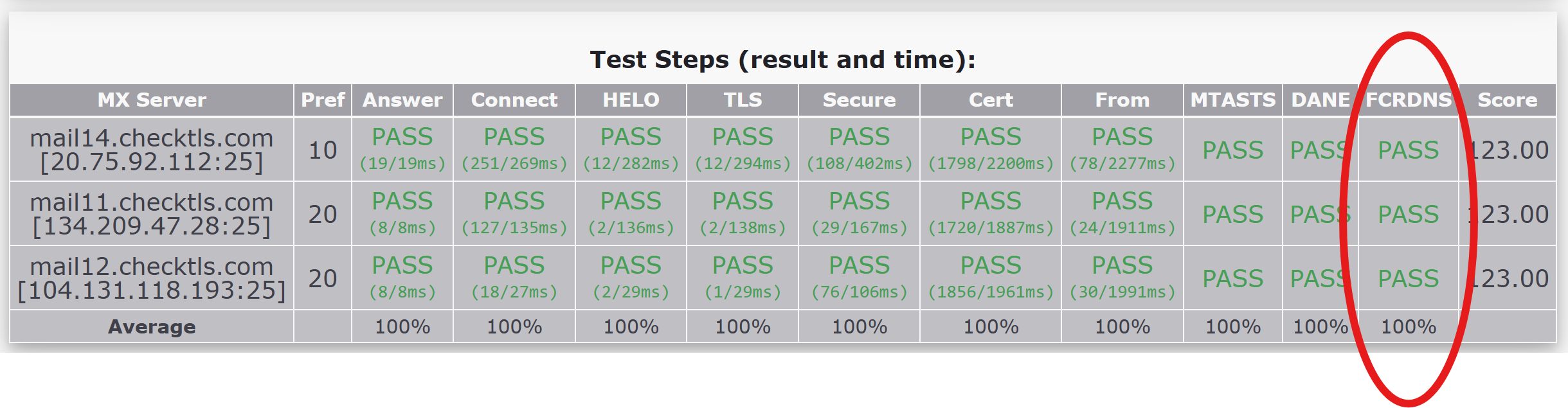
In the TestReceiver output, CheckTLS reports on the status of FCrDNS on every DNS lookup that an email sender performs when sending email to your domain.
CheckTLS Testing MTA-STS (Strict Transport Security)
Recall that Receivers use MTA-STS to announce that anyone sending email to them must use TLS, which both encrypts and authenticates the Receiver, and that email can only only be sent to specific hosts (MX). This makes it harder for a bad actor to redirect email intended for the Receiver.
To verify that your MTA-STS (Mail Transfer Agent Strict Transport Security) is set up correctly, use the CheckTLS ("TestReceiver") test. Use the TestReceiver instructions above to test (Target) your own domain and select the MTA-STS option to see what an email sender will get when checking your MTA-STS.
CheckTLS reports if your MTA-STS is correct right at the top of the result in the Matrix section:

CheckTLS also reports if your MTA-STS is correct in the Test Steps as part of each MX record section. If MTA-STS is not correct this is where CheckTLS reports what was wrong.
In checking if your MTA-STS is correct, CheckTLS looks at:
-
MTA-STS DNS Record: Verifies that you have the appropriate DNS TXT record for your domain to indicate that you are using MTA-STS.
It should look something like:
_mta-sts.<yourdomain>. IN TXT "v=STSv1; id=20231015T000000Z;" -
MTA-STS Policy File (mta-sts.txt):
-
Verifies that you have an MTA-STS policy file, usually named mta-sts.txt, hosted at a specific location:
https://mta-sts.<yourdomain>/.well-known/mta-sts.txtThis file must be accessible using HTTPS without any errors. -
Verifies the contents of the mta-sts.txt file, something like:
version: STSv1
mode: enforce
mx: mail.<yourdomain>
ttl: 86400
The mode can be one of enforce, testing, or none. enforce is recommended for full security.
-
Verifies that you have an MTA-STS policy file, usually named mta-sts.txt, hosted at a specific location:
- MX Records: Verifies that your MX records (Mail Exchanger records) are set correctly for your domain. The MX records should point to the correct mail servers, which should match what's specified in your MTA-STS policy file (mx: field).
- Certificate Verification: Verifies that your mail servers have valid, trusted SSL/TLS certificates.
CheckTLS Testing DANE (DNS-based Authentication of Named Entities)
Recall that Receivers use DANE to identify what SSL certificate(s) are valid for the Receiver's domain. It is a way to authenticate TLS entities without a Certificate Authority (CA), or to limit what CAs are trusted. This makes it harder for a bad actor to receive email intended for the Receiver.
To verify that your DANE (DNS-based Authentication of Named Entities) for SMTP is setup correctly, use the CheckTLS ("TestReceiver") test. Use the TestReceiver instructions above to test (Target) your own domain and select the DANE option to see what an email sender will get when checking your DANE.
CheckTLS reports if your DANE is correct right at the top of the result in the Matrix section:
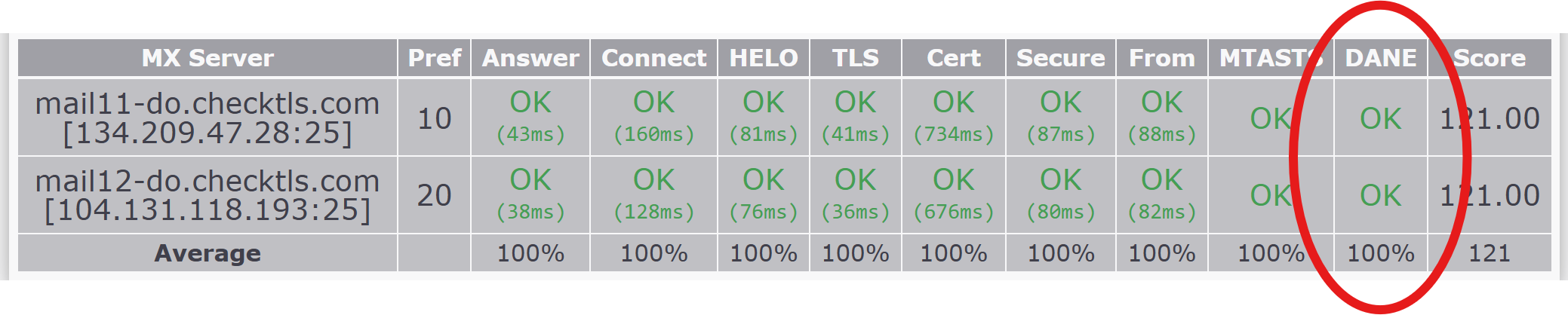
CheckTLS also reports if your DANe is correct in the Test Steps as part of each MX record section. If DANe is not correct this is where CheckTLS reports what was wrong.
In checking if your DANE is correct, CheckTLS looks at:
-
MX Records: Verify that your domain has valid MX records:
- pointing to the correct mail servers
- MX hosts have valid A/AAAA records
- DNSSEC: Verify that your DNS is signed correctly for your domain and your MX hostnames.
-
TLSA Records: Verify that the DANE DNS TLSA records exist for all MX hostnames and are correct:
_25._tcp.mail.example.com. IN TLSA 3 1 1 5e2b8b79c406a4a2e5d51f77d1bb8f2ed67e36d8e232ef09acb9e2fda88a0b0f - MX Certificate matches TLSA record:
- Verify that the certificate is valid (not expired, name matches).
- Verify that the public key or certificate fingerprint matches the TLSA record hash.
- STARTTLS Support: Verify that TLS is supported and enabled
CheckTLS Testing TLS (Transport Layer Security) for sending email
Recall that TLS does three things: It encrypts the contents of an email, making it so the email contents can not be seen by any human or machine. It protects the contents from being altered, so that the recipient gets exactly what the sender sent. And it authenticates that the server to which the receiver is preparing to send the email is allowed to receive email for the domain in the email address.
The CheckTLS ("TestSender") test is used to test a Sender’s TLS. By default TestSender tests TLS. Use the TestSender instructions above to select any additional TLS options, like SSL Versions and Ciphers, and then display the TestSender Setup Page. This link will go to the TestSender page and bring up the TestSender Setup Page for you.
In checking if your Sender TLS is correct, CheckTLS looks at whether or not it could establish a valid SSL/TLS connection to receive the test email that you send to CheckTLS.
Because the primary purpose of TestSender is to test TLS, the result is reported as success or failure; success meaning a SSL/TLS connection was used to receive your email, and failure meaning CheckTLS could not establish a good SSL/TLS connection with your server.
If you selected any additional TLS options before starting the test email to CheckTLS, these are reported along with the success or failure message.
CheckTLS Testing DNSSEC (Domain Name System SECurity Extensions) for sending email
Recall that DNS is a critical component of all the Email Security Technologies, and DNS is used by both Senders and Receivers in protecting and delivering email. Both the CheckTLS ("TestReceiver") test and the CheckTLS ("TestSender") test can test their respective target's (sending or receiving) DNSSEC.
To test DNSSEC for how your DNS answers DNS queries that are used by your email sender, use the CheckTLS ("TestSender") test. Use the TestSender instructions above to select the DNSSEC option and display the TestSender Setup Page. This link will go to the TestSender page, select the FCrDNS option, and bring up the TestSender Setup Page for you.
In the TestSender output, CheckTLS reports on the status of DNSSEC on every DNS lookup that an email receiver performs when receiving email from your domain.
CheckTLS Testing FCrDNS (Forward-Confirmed Reverse DNS) for sending email
Recall that FCrDNS is a two-step verification process used by mail server (like Gmail and Outlook) to prove that a sending IP address is legitimately associated with its claimed domain name. It is a highly-effective anti-spam measure. Both the CheckTLS ("TestReceiver") test and the CheckTLS ("TestSender") test can test their respective target's (sending or receiving) FCrDNS.
To test FCrDNS for how hosts are configured for DNS queries that are used by your email sender, use the CheckTLS ("TestSender") test. Use the TestSender instructions above to select the FCrDNS option and display the TestSender Setup Page. This link will go to the TestSender page, select the FCrDNS option, and bring up the TestSender Setup Page for you.
In the TestSender output, CheckTLS reports on the status of FCrDNS on every DNS lookup that an email receiver performs when receiving email from your domain.
CheckTLS Testing SPF (Sender Policy Framework)
Recall that Senders use SPF to list the IP addresses of the servers that can send email for the Sender’s domain. Any email that does not come from one of those listed servers is suspect and is almost certainly “bad”.
The CheckTLS ("TestSender") test is used to test a Sender’s SPF. Use the TestSender instructions above to select the SPF option and display the TestSender Setup Page. This link will go to the TestSender page, select the SPF option, and bring up the TestSender Setup Page for you.
SPF checks can be performed against the MAIL FROM (or Return-Path) domain and/or the HELO/EHLO hostname.
CheckTLS reports if your SPF is correct for both of these checks:
SPF	mfrom	result		pass
SPF	helo	result		pass
The SPF MAIL FROM check is better at checking the validity of an email because it looks at the physical IP address from which the sender is connecting and not the IP address from where the sender says it is connecting.
Typically an SPF check will try the MAIL FROM first and then if that is missing it will try the HELO/EHLO.
In checking if your SPF MAIL FROM is correct, CheckTLS looks at:
- SPF DNS: record(s) exist for the domain in the MAIL FROM and are correctly formatted.
- IP address: did the connection from the sender come from an IP address listed in the SPF DNS record(s).
In checking if your SPF HELO/EHLO is correct, CheckTLS looks at:
- SPF DNS: record(s) exist for the hostname in the HELO/EHLO SMTP command and are correctly formatted.
- IP address: did a DNS lookup of the HELO/EHLO hostname match an IP address listed in the SPF DNS record(s).
CheckTLS Testing DKIM (DomainKeys Identified Mail)
Recall that Senders use DKIM to make sure your domain's outgoing email is properly authenticated and trusted by receiving mail servers. The CheckTLS ("TestSender") test is used to test a Sender’s DKIM. Use the TestSender instructions above to select the DKIM option and display the TestSender Setup Page. This link will go to the TestSender page, select the DKIM option, and bring up the TestSender Setup Page for you.
Every DKIM setup begins with a selector (e.g., selector1) and a corresponding DNS TXT record at: selector1._domainkey.yourdomain.com. In checking if your DKIM is correct, CheckTLS looks at:
-
DKIM DNS TXT record: Verify that your domain has a valid DKIM DNS TXT record:
- exists at the proper lookup, e.g. selector1._domainkey.yourdomain.com
-
is properly formatted and accurate with these fields:
- v=DKIM1 (version)
- k=cryptotype (the cryptographic key type used to sign)
- p=publickey (the public key of the private key used to sign your email)
-
emails are signed:
- adds an RFC-822 email header: "DKIM-Signature"
-
header is properly formatted and accurate with these fields:
- v=1 (version)
- a=algorithm (uses a modern algorithm, e.g. rsa-sha256)
- c=canonicalization (the canonicalization algorithm used to generate header hashes, usually "relaxed")
- d=yourdomain (matches your domain)
- s=selector (matches a selector in a DKIM DNS record)
- t=timestamp (when the signature was created, usually a unix timestamp seconds since the epoch GMT)
- h=headers (the email headers included in the message hash)
- bh=hash (the hash value computed for the selected headers and full body of the message)
- b=signature (the private key signature of the hash)
-
email signature matches the contents of the received email and selected headers by:
- computing a new hash of the message body using the a=algorithm in the DKIM-Signature header
- verify that the new hash matches the bh=hash in the DKIM-Signature header
- select and make canonical the headers listed in the h=headers field of the DKIM-Signature header
- compute a new hash digest of the selected headers
- use the s=selector and d=domain fields in the DKIM-Signature header to fetch the sender's public key from DNS
- using the public key specified in the DKIM DNS record, decrypt the signature from the b=signature field in the DKIM-Signature header
- verify that the new hash digest matches the decrypted hash digest
To understand how DKIM unequivocally assures that the message received is exactly what the sender sent, follow the above steps in reverse.
- The decrypted hash digest is known to be correct because pubic/private key encryption assures that the decrypted hash digest was encrypted by the sender's private key.
- The sender's private key is known to be correct because it comes from a separate, non-email, system (DNS) and can be further protected by DNSSEC.
- The important message headers in the received message are known to be unchanged from what the sender sent because a newly computed hash digest of the selected headers matches the decrypted hash digest.
- The body hash digest in the DKIM-Signature header is known to be correct because it is one of the important message headers that are known to be unchanged.
- The body of the message is known to be correct because the newly computed body hash digest matches the body hash digest in the DKIM-Signature header.
CheckTLS Testing DMARC (Domain-based Message Authentication, Reporting, and Conformance)
Recall that Senders use DMARC to mandate SPF and/or DKIM, the two underlying email authentication methods, and requires one or both. It also enforces alignment between SPF/DKIM and the visible "From:" domain, and it tells receiving mail servers what to do if authentication fails. DMARC does not do authentication itself, rather it checks the results of SPF or DKIM or both, and that they match the domain in the From: header.
DMARC improves email authentication by announcing to the world, via a DNS DMARC record, that a domain does SPF and/or DKIM, so receivers know to check any received emails from that domain for SPF and/or DKIM. It also improves authentication by matching the From: address in the email to the domain, telling receivers "If you get an email from my domain, be sure to check SPF and/or DKIM", and "Any email from my domain has to explicitly come from a particular From: domain and only a particular From: domain". This prevents a sender from spoofing a sub-domain of your domain, for example "sales@spoofed.checktls.com".
The CheckTLS ("TestSender") test is used to test a Sender’s DMARC. Use the TestSender instructions above to select the DMARC option and display the TestSender Setup Page. Obviously because DMARC sits on top of SPF and/or DKIM, selecting one or both of these is also useful. This link will go to the TestSender page, select the DKIM option, and bring up the TestSender Setup Page for you.
In checking that your DMARC is correct, CheckTLS checks that your domain has a valid DMARC DNS TXT record, and that that one or both of SPF and DKIM are correct:
-
That your domain has a valid DMARC DNS TXT record:
- exists at the proper lookup, e.g. _dmarc.yourdomain.com
-
is properly formatted and accurate with these fields:
- v=DMARC1 (version) REQUIRED
- p=none|quarantine|reject (security policy) REQUIRED
- rua=emailaddress (where aggregate security and delivery reports are sent) OPTIONAL
- pct=number (the percentage of emails subjected to the DMARC policy) OPTIONAL
- aspf=r|s (alignment mode for SPF) OPTIONAL
- adkim=r|s (alignment mode for DKIM) OPTIONAL
-
That SPF or DKIM or both were able to authenticate the message
-
SPF authenticates the message (message came from the right IP address) with either:
- MFROM where the MAIL FROM (or Return-Path) domain matches a DNS SPF record
- HELO where the SMTP HELO greeting matches a DNS SPF record
- DKIM authenticates the message (message was not changed)
-
SPF authenticates the message (message came from the right IP address) with either:
- If SPF authenticates the message, DMARC also checks that the Return-Path domain aligns with (matches) the From: message header ("spf-alignment")
- If DKIM authenticates the message, DMARC also checks that the signing domain (d= field from DKIM-Signature) aligns with (matches) the From: message header ("dkim-alignment")
When checking alignment, CheckTLS uses either "strict" or "relaxed" matching based on the aspf= (for SPF) or the adkim= (for DKIM) fields on the domain's DMARC DNS record. "strict" means the domains must exactly match from beginning to end, while "relaxed" means a subdomain can match a parent domains. For example sales.mycompany.com is a relaxed match of mycompany.com, but it is not a strict match.
CheckTLS Testing BIMI (Brand Indicators for Message Identification)
Recall that Senders use BIMI to mandate DMARC (which mandates SPF and/or DKIM also). Receivers that check BIMI will display your company's logo next to any emails received from your company that meet your BIMI requirements. Receivers will not display your logo, and possibly display an error, or quarantine, any emails received that do not meet your BIMI requirements.
The CheckTLS ("TestSender") test is used to test a Sender’s BIMI. Use the TestSender instructions above to select the BIMI option and display the TestSender Setup Page. Obviously because BIMI sits on top of DMARC, and therefore SPF and/or DKIM, selecting one or more of these is also useful. This link will go to the TestSender page, select the BIMI option, and bring up the TestSender Setup Page for you.
In checking that your BIMI is correct, CheckTLS looks at:
- if you have a valid BIMI header in your email
- if you have a valid BIMI record in DNS
- that your email system correctly implements DMARC (which checks SPF and/or DKIM)
- optionally that you have a Verified Mark Certificate (CheckTLS does not check this yet)
(double click in results below to enlarge)
Example results from the CheckTLS ("TestSender") Test
(scroll left and right to see wide data)SUCCESSFUL //email/test From: (V01.73.01)
Your email was sent securely using TLS.
| RECEIVER | Connection | From | 104.131.168.30 | |
| RECEIVER | DNS | 104.131.168.30 | PTR | mailbox1-do.checktls.com +FCrDNS |
| RECEIVER | DNS | mailbox1-do.checktls.com | A | 104.131.168.30 +FCrDNS |
| SENDER | Header | To | <test@TestSender.CheckTLS.com> | |
| SENDER | Header | From | <test@checktls.com> | |
| SENDER | Header | Date | Wed, 17 Jun 2026 16:50:16 -0400 | |
| SENDER | Header | Subject | YourPasswordHere | |
| SENDER | ClientCert | -----BEGIN CERTIFICATE-----
IIHxDCCBqygAwIBAgIJAKoqBUM2KO7dMA0GCSqGSIb3DQEBCwUAMIG0MQswCQYD
...lines removed for brevity...
Xdkd2Yd2nQXPsMiZy5fS8scMZsV0II/658Lk1kRS0G//e0zlyQpbXpVxIRWyo5q
N40EZXuxyxRlr1WLOdVskHIFyKfdCZH
----END CERTIFICATE----- |
||
| SENDER | SNI | [none] | ||
| TLS | info | SSLVersion | TLSv1_3 | |
| TLS | info | SSLCipher | TLS_AES_256_GCM_SHA384 | |
| TLS | result | Successful | ||
| SPF | DNS | mailbox1-do.checktls.com | A | +DNSSEC 104.131.168.30 |
| SPF | DNS | mailbox1-do.checktls.com | TXT | +DNSSEC "v=spf1 a -all" |
| SPF | DNS | mail12.checktls.com | CNAME | +DNSSEC mail12-do.checktls.com. |
| SPF | DNS | checktls.com | TXT | +DNSSEC "v=spf1 a mx a:whitelist.checktls.com a:spf.checktls.com -all",google-site-verification=AsgP5ibWfjEqqi7dy_fN_DWPtzfYcwn0ETAW96ICc04 |
| SPF | DNS | checktls.com | A | +DNSSEC 20.75.92.112,142.93.73.156,167.71.160.115 |
| SPF | DNS | checktls.com | MX | +DNSSEC 10 mail14.checktls.com.,20 mail11.checktls.com.,20 mail12.checktls.com. |
| SPF | DNS | www14-azure.checktls.com | A | +DNSSEC 20.75.92.112 |
| SPF | DNS | mail14.checktls.com | CNAME | +DNSSEC www14-azure.checktls.com. |
| SPF | DNS | mail12-do.checktls.com | A | +DNSSEC 104.131.118.193 |
| SPF | DNS | mail11-do.checktls.com | A | +DNSSEC 134.209.47.28 |
| SPF | DNS | mail11.checktls.com | CNAME | +DNSSEC mail11-do.checktls.com. |
| SPF | DNS | whitelist.checktls.com | A | +DNSSEC 20.75.92.112,20.75.92.113,20.75.92.114,20.75.92.115,20.75.92.116,20.75.92.117,20.75.92.118,104.131.118.193,104.131.168.30,134.209.47.28,134.209.169.224,142.93.73.156,165.227.190.238,167.71.160.115 |
| SPF | mfrom | identity | test@checktls.com | |
| SPF | mfrom | ip_address | 104.131.168.30 | |
| SPF | mfrom | sent | 104.131.168.30 | |
| SPF | mfrom | record | v=spf1 a mx a:whitelist.checktls.com a:spf.checktls.com -all | |
| SPF | mfrom | text | pass (Mechanism 'a:whitelist.checktls.com' matched) | |
| SPF | mfrom | local | checktls.com: 104.131.168.30 is authorized to use 'test@checktls.com' in 'mfrom' identity (mechanism 'a:whitelist.checktls.com' matched) | |
| SPF | mfrom | header | Received-SPF: pass (checktls.com: 104.131.168.30 is authorized to use 'test@checktls.com' in 'mfrom' identity (mechanism 'a:whitelist.checktls.com' matched)) receiver=ts11-do.checktls.com; identity=mailfrom; envelope-from="test@checktls.com"; helo=ts11-do.checktls.com; client-ip=104.131.168.30 | |
| SPF | mfrom | result | pass | |
| SPF | helo | identity | mailbox1-do.checktls.com | |
| SPF | helo | ip_address | 104.131.168.30 | |
| SPF | helo | sent | mailbox1-do.checktls.com | |
| SPF | helo | record | v=spf1 a -all | |
| SPF | helo | text | pass (Mechanism 'a' matched) | |
| SPF | helo | local | mailbox1-do.checktls.com: 104.131.168.30 is authorized to use 'mailbox1-do.checktls.com' in 'helo' identity (mechanism 'a' matched) | |
| SPF | helo | header | Received-SPF: pass (mailbox1-do.checktls.com: 104.131.168.30 is authorized to use 'mailbox1-do.checktls.com' in 'helo' identity (mechanism 'a' matched)) receiver=ts11-do.checktls.com; identity=helo; helo=mailbox1-do.checktls.com; client-ip=104.131.168.30 | |
| SPF | helo | result | pass | |
| DKIM | DNS | default._domainkey.checktls.com | TXT | +DNSSEC "v=DKIM1; k=rsa; p=MIGfMA0GCSqGSIb3DQEBAQUAA4GNADCBiQKBgQCkZxaMIXWH8NqafDS6Kzr6eNwlofpu+50Y+t9GpgXnCgt3mZTeoFr4kXcxNNfibzDHafcm8aT+Es3t1TOxlhYiqlyi60cVgRajwryRMkPCD4SvxU97V6gj5VFhfz1VtyaHUXYbJnGxShluWPa4AbXMmqey7dNDCPQKl5aOkILdPQIDAQAB" |
| DKIM | DNS | checktls.com | MX | +DNSSEC 10 mail14.checktls.com.,20 mail11.checktls.com.,20 mail12.checktls.com. |
| DKIM | SIGNATURE | header | DKIM-Signature: v=1; a=rsa-sha256; c=relaxed/relaxed; d=checktls.com; s=default; t=1781729417; bh=YeKr45sP4G3ZsJPCc0ipE6UTRX9ZqPEQAiBK5WZtbIM=; h=From:To:Subject:Date:From; b=R1t3zSlBdS6j7AVuNLU4l5V+oUHA/bHNutH1dzHO+rhEtUjgK/BernyZzYU5/qz61 dHnqRh2iXZcoCXDPUwlmIX8IPRn8baXRGnIohK7ht5JntN9We/A1iaVhHtY0sU5kVL bGtRWuT0bMfxsFeijfmPkElAdSBjT8qc1mh924FQ= | |
| DKIM | SIGNATURE | IDENTITY | @checktls.com | |
| DKIM | SIGNATURE | DETAIL | pass | |
| DKIM | SIGNATURE | DOMAIN | checktls.com | |
| DKIM | SIGNATURE | HASH_ALGORITHM | sha256 | |
| DKIM | SIGNATURE | CANONICALIZATION | relaxed | |
| DKIM | SIGNATURE | HEADER_LIST | from:to:subject:date:from | |
| DKIM | SIGNATURE | BODY_HASH | YeKr45sP4G3ZsJPCc0ipE6UTRX9ZqPEQAiBK5WZtbIM= | |
| DKIM | SIGNATURE | DATA | R1t3zSlBdS6j7AVuNLU4l5V+oUHA/bHNutH1dzHO+rhEtUjgK/BernyZzYU5/qz61dHnqRh2iXZcoCXDPUwlmIX8IPRn8baXRGnIohK7ht5JntN9We/A1iaVhHtY0sU5kVLbGtRWuT0bMfxsFeijfmPkElAdSBjT8qc1mh924FQ= | |
| DKIM | DNS | v | DKIM1 | |
| DKIM | DNS | p | MIGfMA0GCSqGSIb3DQEBAQUAA4GNADCBiQKBgQCkZxaMIXWH8NqafDS6Kzr6eNwlofpu+50Y+t9GpgXnCgt3mZTeoFr4kXcxNNfibzDHafcm8aT+Es3t1TOxlhYiqlyi60cVgRajwryRMkPCD4SvxU97V6gj5VFhfz1VtyaHUXYbJnGxShluWPa4AbXMmqey7dNDCPQKl5aOkILdPQIDAQAB | |
| DKIM | DNS | k | rsa | |
| DKIM | SIGNATURE | DIGEST | 6452D795586D27B9760069577192D45BCAEA52731FDA769869675501A3C90ABA |
|
| DKIM | CANONICAL | HEADERS | from:<test@checktls.com> to:<test@TestSender.CheckTLS.com> subject:YourPasswordHere date:Wed, 17 Jun 2026 16:50:16 -0400 dkim-signature:v=1; a=rsa-sha256; c=relaxed/relaxed; d=checktls.com; s=default; t=1781729417; bh=YeKr45sP4G3ZsJPCc0ipE6UTRX9ZqPEQAiBK5WZtbIM=; h=From:To:Subject:Date:From; b= | |
| DKIM | COMPUTED | BODY_HASH | YeKr45sP4G3ZsJPCc0ipE6UTRX9ZqPEQAiBK5WZtbIM= |
|
| DKIM | COMPUTED | DIGEST | 6452D795586D27B9760069577192D45BCAEA52731FDA769869675501A3C90ABA |
|
| DKIM | POLICY | sender | "o=-", location="checktls.com", result="accept" | |
| DKIM | POLICY | author | "o=~" (default), result="accept" | |
| DKIM | POLICY | ADSP | "" (default), result="accept" | |
| DKIM | result | pass | ||
| DMARC | mfrom | domain | checktls.com | |
| DMARC | helo | domain | mailbox1-do.checktls.com | |
| DMARC | DNS | _dmarc.checktls.com | TXT | +DNSSEC "v=DMARC1; p=quarantine" |
| DMARC | DNS | checktls.com | MX | +DNSSEC 10 mail14.checktls.com.,20 mail11.checktls.com.,20 mail12.checktls.com. |
| DMARC | DNS | checktls.com | NS | +DNSSEC ns1-do.checktls.com.,ns2-do.checktls.com. |
| DMARC | dkim_meta | domain | checktls.com | |
| DMARC | dkim_meta | identity | (blank) | |
| DMARC | dkim_meta | selector | default | |
| DMARC | spf_align | strict | ||
| DMARC | published | v | DMARC1 | |
| DMARC | published | p | quarantine | |
| DMARC | published | domain | checktls.com | |
| DMARC | disposition | none | ||
| DMARC | dkim_align | strict | ||
| DMARC | spf | pass | ||
| DMARC | dkim | pass | ||
| DMARC | result | pass | ||
| BIMI | DNS | checktls.com | MX | +DNSSEC 10 mail14.checktls.com.,20 mail11.checktls.com.,20 mail12.checktls.com. |
| BIMI | DNS | _dmarc.checktls.com | TXT | +DNSSEC "v=DMARC1; p=quarantine" |
| BIMI | DNS | default._bimi.checktls.com | TXT | +DNSSEC v=BIMI1\;l=https://www.checktls.com/images/checktlsbimi.svg\;a=self\; |
| BIMI | domain | checktls.com | ||
| BIMI | header | v=BIMI1; s=default; | ||
| BIMI | selector | default | ||
| BIMI | headers | BIMI-Indicator |  |
|
| BIMI | headers | BIMI-Location | v=BIMI1; l=https://www.checktls.com/images/checktlsbimi.svg |
|
| BIMI | result | pass | ||
| ConfidenceFactor | 128 | |||
The transcript of the eMail SMTP session is below, with:
--> this is a line from your email system to us (~~> when encrypted)
<-- this is a line to your email system from us (<~~ when encrypted)
=== this is a line about the tls negotiation (cypher, cert, etc)
*** this is an error, warning, or info line that the test found
<-- 220 ts11-do.checktls.com ESMTP TestSender(V01.73.01) Wed, 17 Jun 2026 16:51:17 -0400
--> EHLO mailbox1-do.checktls.com
<-- 250-ts11-do.checktls.com Hello mailbox1-do.checktls.com [104.131.168.30], pleased to meet you
<-- 250-ENHANCEDSTATUSCODES
<-- 250-8BITMIME
<-- 250-STARTTLS
<-- 250 HELP
--> STARTTLS
<-- 220 Ready to start TLS
=== TLS started with cipher TLSv1_3:TLS_AES_256_GCM_SHA384
=== TLS client cert:
Subject Name: /CN=*.checktls.com
Issuer  Name: /C=US/ST=Arizona/L=Scottsdale/O=GoDaddy.com, Inc./OU=http://certs.godaddy.com/repository//CN=Go Daddy Secure Certificate Authority - G2
~~> EHLO mailbox1-do.checktls.com
<~~ 250-ts11-do.checktls.com Hello mailbox1-do.checktls.com [104.131.168.30], pleased to meet you
<~~ 250-ENHANCEDSTATUSCODES
<~~ 250-8BITMIME
<~~ 250 HELP
~~> MAIL From:<test@checktls.com>
<~~ 250 Ok - mail from test@checktls.com
~~> RCPT To:<test@TestSender.CheckTLS.com>
<~~ 250 Ok - recipient test@TestSender.CheckTLS.com
~~> DATA
<~~ 354 Send data.  End with CRLF.CRLF
~~> DKIM-Signature: v=1; a=rsa-sha256; c=relaxed/relaxed; d=checktls.com;
~~> 	s=default; t=1781729417;
~~> 	bh=YeKr45sP4G3ZsJPCc0ipE6UTRX9ZqPEQAiBK5WZtbIM=;
~~> 	h=From:To:Subject:Date:From;
~~> 	b=R1t3zSlBdS6j7AVuNLU4l5V+oUHA/bHNutH1dzHO+rhEtUjgK/BernyZzYU5/qz61
~~> 	 dHnqRh2iXZcoCXDPUwlmIX8IPRn8baXRGnIohK7ht5JntN9We/A1iaVhHtY0sU5kVL
~~> 	 bGtRWuT0bMfxsFeijfmPkElAdSBjT8qc1mh924FQ=
~~> From: <test@checktls.com>
~~> To: <test@TestSender.CheckTLS.com>
~~> Subject: YourPasswordHere
~~> Date: Wed, 17 Jun 2026 16:50:16 -0400
~~> BIMI-Selector: v=BIMI1; s=default;
~~>
~~> This is a test message.
~~> TLS
~~> Headers
~~> SSLVERSION
~~> SSLCIPHER
~~> ClientCert
~~> SNI
~~> SPF
~~> DKIM
~~> DMARC
~~> FCRDNS
~~> BIMI
~~> DNS
~~> DNSSEC
~~> SMTP
~~> .
<~~ 250 Ok
~~> QUIT
<~~ 221 ts11-do.checktls.com closing connection
Example results from the CheckTLS ("TestReceiver") Test
(results below are compressed to fit extras)
| Domain Name System (DNS) lookups | |||||
|---|---|---|---|---|---|
| seconds | type | target | results | extras | nameserver |
| [000.000] | DNS LOOKUPS | ||||
| [000.001] | SEARCHLIST | 1.1.1.1 2001:4860:4860::8888 8.8.8.8 | |||
| [000.087] | MTASTS policy | url | https://mta-sts.checktls.com/.well-known/mta-sts.txt | ||
| [000.088] | MTASTS policy | https://mta-sts.checktls.com/.well-known/mta-sts.txt | version: STSv1 mode: testing mx: *.checktls.com max_age: 86401 | ||
| [000.187] | MTASTS:TXT | _mta-sts.checktls.com | "v=STSv1; id=20200520120000" | +DNSSEC | 1.1.1.1 |
| [000.292] | TLSRPT:TXT | _smtp._tls.checktls.com | "v=TLSRPTv1; rua=mailto:sts-reports@checktls.com" | +DNSSEC | 1.1.1.1 |
| [000.382] | MX | checktls.com | 10 mail14.checktls.com 20 mail11.checktls.com 20 mail12.checktls.com | +DNSSEC | 1.1.1.1 |
| [000.386] | MX:MTASTS | mail14.checktls.com | Pass | ||
| [001.019] | MX:CNAME | mail14.checktls.com | www14-azure.checktls.com | +DNSSEC | 1.1.1.1 |
| [001.020] | MX:A | www14-azure.checktls.com | 20.75.92.112 | +DNSSEC +FCrDNS | 1.1.1.1 |
| [001.020] | MX:PTR | 20.75.92.112 | www14-azure.checktls.com | -DNSSEC +FCrDNS | 1.1.1.1 |
| [001.021] | MX:MTASTS | mail11.checktls.com | Pass | +DNSSEC | |
| [001.505] | MX:CNAME | mail11.checktls.com | mail11-do.checktls.com | 1.1.1.1 | |
| [001.506] | MX:A | mail11-do.checktls.com | 134.209.47.28 | +DNSSEC +FCrDNS | 1.1.1.1 |
| [001.507] | MX:PTR | 134.209.47.28 | mail11-do.checktls.com | -DNSSEC +FCrDNS | 1.1.1.1 |
| [001.508] | MX:MTASTS | mail12.checktls.com | Pass | ||
| [002.301] | MX:CNAME | mail12.checktls.com | mail12-do.checktls.com | +DNSSEC | 1.1.1.1 |
| [002.301] | MX:A | mail12-do.checktls.com | 104.131.118.193 | +DNSSEC +FCrDNS | 1.1.1.1 |
| [002.302] | MX:PTR | 104.131.118.193 | mail12-do.checktls.com | -DNSSEC +FCrDNS | 1.1.1.1 |
| [002.411] | TLSA | _25._tcp.mail14.checktls.com | 2 1 1 2A8F2D8AF0EB123898F74C866AC3FA669054E23C17BC7A95BD023419 2DC635D0 | +DNSSEC | 1.1.1.1 |
| [002.533] | TLSA | _25._tcp.mail11.checktls.com | 2 1 1 2A8F2D8AF0EB123898F74C866AC3FA669054E23C17BC7A95BD023419 2DC635D0 | +DNSSEC | 1.1.1.1 |
| [002.635] | TLSA | _25._tcp.mail12.checktls.com | 2 1 1 2A8F2D8AF0EB123898F74C866AC3FA669054E23C17BC7A95BD023419 2DC635D0 3 0 1 A4D7D86BFBD0B3538F2850BA49A3408D4FC7D0396E67423AEAC397DF BC92B939 3 1 1 33086ACB8B20F6F057EC3868E422E4DF0C5E7739D210F843EE1750DC 28D96A56 | +DNSSEC | 1.1.1.1 |
| seconds | SMTP test(s) and results | |
|---|---|---|
| [000.001] | Trying TLS on mail14.checktls.com[20.75.92.112:25] (10) @2026-06-17T23:57:37.329976Z (S) | |
| [000.017] | Server answered | |
| [000.066] | <‑‑ | 220 www14-azure.checktls.com ESMTP Sendmail 8.16.1/8.16.1; Wed, 17 Jun 2026 19:57:37 -0400 |
| [000.066] | We are allowed to connect | |
| [000.066] | ‑‑> | EHLO www2-do.checktls.com |
| [000.078] | <‑‑ | 250-www14-azure.checktls.com Hello www2-do.checktls.com [157.245.11.48], pleased to meet you 250-ENHANCEDSTATUSCODES 250-PIPELINING 250-8BITMIME 250-SIZE 250-STARTTLS 250-DELIVERBY 250 HELP |
| [000.079] | We can use this server | |
| [000.079] | TLS is an option on this server | |
| [000.079] | ‑‑> | STARTTLS |
| [000.091] | <‑‑ | 220 2.0.0 Ready to start TLS |
| [000.091] | STARTTLS command works on this server | |
| [000.092] | SSL_ocsp_mode = SSL_OCSP_FULL_CHAIN | |
| [000.092] | SSL_hostname (SNI) = mail14.checktls.com | |
| [000.191] | Connection converted to SSL/TLS | |
| SSLVersion in use: TLSv1_3 | ||
| Cipher in use: TLS_AES_256_GCM_SHA384 | ||
| Perfect Forward Secrecy: yes | ||
| Session Algorithm in use: P-256(256 bits) | ||
| Key Exchange Quality: good | ||
| [001.313] | MTA-STS pass | |
| [001.314] | DANE pass (match TLSA record(s): #1) | |
| Certificate #1 of 3 (sent by MX): | ||
| Cert signed by: #2 | ||
| Cert VALIDATED: ok | ||
| Cert Hostname VERIFIED (mail14.checktls.com = *.checktls.com | DNS:*.checktls.com | DNS:checktls.com | DNS:*.emailsentry.com | DNS:emailsentry.com | DNS:*.email-test.com | DNS:email-test.com | DNS:*.informationsecuritytest.com | DNS:informationsecuritytest.com | DNS:*.informationsecuritytesting.com | DNS:informationsecuritytesting.com | DNS:*.sniffynet.com | DNS:sniffynet.com | DNS:*.sniffinet.com | DNS:sniffinet.com | DNS:*.infosectesting.com | DNS:infosectesting.com) | ||
| cert not revoked by CRL | ||
| cert not revoked by OCSP | ||
Data: |
||
Version: 3 (0x2) |
||
Serial Number: aa:2a:05:43:36:28:ee:dd |
||
Validity: |
||
Not Before: Oct 7 21:13:25 2025 GMT |
||
Not After: Nov 8 21:13:25 2026 GMT |
||
Subject: |
||
commonName = *.checktls.com |
||
Issuer: |
||
countryName = US |
||
stateOrProvinceName = Arizona |
||
localityName = Scottsdale |
||
organizationName = GoDaddy.com, Inc. |
||
organizationalUnitName = http://certs.godaddy.com/repository/ |
||
commonName = Go Daddy Secure Certificate Authority - G2 |
||
Subject Public Key Info: |
||
Public Key Algorithm: rsaEncryption |
||
Public Key Bits: (2048 bit) |
||
    Modulus:
      95:37:BB:F6:0B:C8:57:DB:D7:5D:20:02:91:AA:58:5D
      ...lines removed for brevity...
62:A6:A1:80:AF:80:DE:46:2E:EE:1A:D9:6C:92:C1:9B |
||
Exponent: 65537 (0x10001) |
||
    Key:
      -----BEGIN RSA PUBLIC KEY-----
      MIIBCgKCAQEAlTe79gvIV9vXXSACkapYXYs/Au9TVZhGhRax0CEjUMIn1Mer1+Jf
      NSbTHCgPc8mz2OIh1T0QeZYP/IYhhgNHPNw6cWYF39O3vfQQ2qBxXnZ+nhYefsR/
      8D6+eriV+Hmc8eVtgjwL9iGXAYuUMCHeh5RWQIaA2oYKsZHjNYfBZRCXGzTgEzm6
      vYL90/DCe+IsF+vam2egV5GJo+k11hZk7A+DcdfNeYn0o+TOLre7Km1rRxAax2Mc
      xDzdRfobcDybqc7OKHk0KA9ft7HwFKmZdyqUl3f/zk979uR3TT8MGW/RbOBxOaRu
      tGgS8sbiY6iSYqahgK+A3kYu7hrZbJLBmwIDAQAB
      -----END RSA PUBLIC KEY-----
|
||
X509v3 Extensions: |
||
X509v3 Basic Constraints: critical |
||
CA:FALSE |
||
X509v3 Extended Key Usage: |
||
TLS Web Server Authentication, TLS Web Client Authentication |
||
X509v3 Key Usage: critical |
||
Digital Signature, Key Encipherment |
||
X509v3 CRL Distribution Points: |
||
      Full Name:
        URI:http://crl.godaddy.com/gdig2s1-64703.crl
|
||
X509v3 Certificate Policies: |
||
      Policy: 2.23.140.1.2.1
      Policy: 2.16.840.1.114413.1.7.23.1
        CPS: http://certificates.godaddy.com/repository/
|
||
Authority Information Access: |
||
      OCSP - URI:http://ocsp.godaddy.com/
      CA Issuers - URI:http://certificates.godaddy.com/repository/gdig2.crt
|
||
X509v3 Authority Key Identifier: |
||
keyid:40:C2:BD:27:8E:CC:34:83:30:A2:33:D7:FB:6C:B3:F0:B4:2C:80:CE |
||
X509v3 Subject Alternative Name: |
||
DNS:*.checktls.com, DNS:checktls.com, DNS:*.emailsentry.com, DNS:emailsentry.com, DNS:*.email-test.com, DNS:email-test.com, DNS:*.informationsecuritytest.com, DNS:informationsecuritytest.com, DNS:*.informationsecuritytesting.com, DNS:informationsecuritytesting.com, DNS:*.sniffynet.com, DNS:sniffynet.com, DNS:*.sniffinet.com, DNS:sniffinet.com, DNS:*.infosectesting.com, DNS:infosectesting.com |
||
X509v3 Subject Key Identifier: |
||
38:9F:55:E1:59:28:FE:A2:BE:3D:42:B8:BF:E9:12:80:86:9E:16:7F |
||
CT Precertificate SCTs: |
||
      Signed Certificate Timestamp:
          Version   : v1 (0x0)
          Log ID    : D7:6D:7D:10:D1:A7:F5:77:C2:C7:E9:5F:D7:00:BF:F9:
                      82:C9:33:5A:65:E1:D0:B3:01:73:17:C0:C8:C5:69:77
          Timestamp : Oct  7 21:13:26.133 2025 GMT
          Extensions: none
          Signature : ecdsa-with-SHA256
                      30:45:02:20:63:3D:13:D7:95:F4:C3:49:61:02:37:C9:
                      B3:AE:4E:B8:A2:39:71:CA:A7:2C:B9:C4:CD:A4:F2:00:
                      C8:DE:84:33:02:21:00:FD:62:E4:9F:C5:5F:8E:12:6E:
                      BD:6C:DB:CB:4E:F3:31:38:2C:DE:E4:0D:8D:9C:07:BC:
                      DC:1F:39:5F:06:0E:70
      Signed Certificate Timestamp:
          Version   : v1 (0x0)
          Log ID    : AC:AB:30:70:6C:EB:EC:84:31:F4:13:D2:F4:91:5F:11:
                      1E:42:24:43:B1:F2:A6:8C:4F:3C:2B:3B:A7:1E:02:C3
          Timestamp : Oct  7 21:13:26.925 2025 GMT
          Extensions: none
          Signature : ecdsa-with-SHA256
                      30:44:02:20:1A:50:62:D6:4B:70:78:2B:8F:49:03:1B:
                      BF:B1:B0:03:7E:59:1E:81:71:57:4D:26:A9:9B:D9:87:
                      7A:52:BF:D2:02:20:60:A7:5C:23:A7:D5:98:B1:3C:28:
                      2E:36:96:E8:A5:D1:C4:8A:33:74:DA:5B:F4:1B:8C:2B:
                      64:5D:7B:19:07:EB
      Signed Certificate Timestamp:
          Version   : v1 (0x0)
          Log ID    : C2:31:7E:57:45:19:A3:45:EE:7F:38:DE:B2:90:41:EB:
                      C7:C2:21:5A:22:BF:7F:D5:B5:AD:76:9A:D9:0E:52:CD
          Timestamp : Oct  7 21:13:27.096 2025 GMT
          Extensions: none
          Signature : ecdsa-with-SHA256
                      30:45:02:21:00:C6:74:C2:49:3D:DC:3F:1A:4A:DD:6F:
                      31:5B:10:49:9C:68:29:44:0A:D7:D8:10:58:42:F4:75:
                      CC:51:B5:27:B8:02:20:1C:0B:65:85:E9:46:B6:6C:2F:
                      1E:5C:2A:EB:54:50:66:9C:AA:03:F2:88:A0:5B:EA:A4:
78:1D:DB:F0:78:5C:17 |
||
Digest: a4d7d86bfbd0b3538f2850ba49a3408d4fc7d0396e67423aeac397dfbc92b939 |
||
Signature: sha256WithRSAEncryption |
||
  42:37:c0:11:36:bd:ba:8f:84:21:84:f6:d7:2d:79:78
      ...lines removed for brevity...
51:96:bd:56:2c:e7:55:b2:41:c8:17:22:9f:74:26:47 |
||
Fingerprints: |
||
  all$308207C4308206ACA003020102020900AA2A05433628EEDD300D0609
      ...lines removed for brevity...
  59114B41BFFDED339724296D7A55C48456CA8E6AF0DE341195EEC72C5196
BD562CE755B241C817229F742647 |
||
  all$pub$30820122300D06092A864886F70D01010105000382010F003082
      ...lines removed for brevity...
  F014A999772A949777FFCE4F7BF6E4774D3F0C196FD16CE07139A46EB468
12F2C6E263A89262A6A180AF80DE462EEE1AD96C92C19B0203010001 |
||
sha256$a4d7d86bfbd0b3538f2850ba49a3408d4fc7d0396e67423aeac39 7dfbc92b939 |
||
sha256$pub$33086acb8b20f6f057ec3868e422e4df0c5e7739d210f843e e1750dc28d96a56 |
||
sha512$4afb3a1d342e940874d3d7771f9f712ad8bbc31cfe842801ae4b7 d7c773982ec9a383f5518699fb2b307b705caa7366d2f0234205ba32aff3 ceba4be89330c40 |
||
sha512$pub$5bab91b8fc4565f1ba26ada257cde59e14a331e98030864cc 282739bec3fcc60b468e2ce64e71242b15caff1791b59a194e2e077e6232 ebffb779cf84bdec919 |
||
Certificate:
  -----BEGIN CERTIFICATE-----
  MIIHxDCCBqygAwIBAgIJAKoqBUM2KO7dMA0GCSqGSIb3DQEBCwUAMIG0MQswCQYD
      ...lines removed for brevity...
  aXdkd2Yd2nQXPsMiZy5fS8scMZsV0II/658Lk1kRS0G//e0zlyQpbXpVxIRWyo5q
  8N40EZXuxyxRlr1WLOdVskHIFyKfdCZH
  -----END CERTIFICATE-----
|
||
TLSA 2 0 1 A4D7D86BFBD0B3538F2850BA49A3408D4FC7D0396E67423AEAC397DFBC92B939 TLSA 2 1 1 33086ACB8B20F6F057EC3868E422E4DF0C5E7739D210F843EE1750DC28D96A56 TLSA 2 0 2 4AFB3A1D342E940874D3D7771F9F712AD8BBC31CFE842801AE4B7D7C773982EC9A383F5518699FB2B307B705CAA7366D2F0234205BA32AFF3CEBA4BE89330C40 TLSA 2 1 2 5BAB91B8FC4565F1BA26ADA257CDE59E14A331E98030864CC282739BEC3FCC60B468E2CE64E71242B15CAFF1791B59A194E2E077E6232EBFFB779CF84BDEC919 |
||
| Certificate #2 of 3 (sent by MX): | ||
| Cert signed by: #3 | ||
| Cert VALIDATED: ok | ||
| cert not revoked by CRL | ||
| cert not revoked by OCSP | ||
Data: |
||
Version: 3 (0x2) |
||
Serial Number: 07 |
||
Validity: |
||
Not Before: May 3 07:00:00 2011 GMT |
||
Not After: May 3 07:00:00 2031 GMT |
||
Subject: |
||
countryName = US |
||
stateOrProvinceName = Arizona |
||
localityName = Scottsdale |
||
organizationName = GoDaddy.com, Inc. |
||
organizationalUnitName = http://certs.godaddy.com/repository/ |
||
commonName = Go Daddy Secure Certificate Authority - G2 |
||
Issuer: |
||
countryName = US |
||
stateOrProvinceName = Arizona |
||
localityName = Scottsdale |
||
organizationName = GoDaddy.com, Inc. |
||
commonName = Go Daddy Root Certificate Authority - G2 |
||
Subject Public Key Info: |
||
Public Key Algorithm: rsaEncryption |
||
Public Key Bits: (2048 bit) |
||
    Modulus:
      B9:E0:CB:10:D4:AF:76:BD:D4:93:62:EB:30:64:B8:81
      ...lines removed for brevity...
54:35:4B:69:4E:BC:3B:D3:49:2E:1F:DC:C1:D2:52:FB |
||
Exponent: 65537 (0x10001) |
||
    Key:
      -----BEGIN RSA PUBLIC KEY-----
      MIIBCgKCAQEAueDLENSvdr3Uk2LrMGS4gQhswwTZYheOL/8+Zc+PzmLmPFIc2hZF
      S1WreGtjg2KQzg9pbJnIGhSLTMxFM+qI3J6jryv+gGGdeVfEzy70PzA8XUf8mha8
      wzeWQVGOEUtU+Ci+0Iy+8DA4HvOwJvhmR2Nt3nEmR484R1PRRh2049wA6kWsvbxx
      2apvANvbzTA6eU9fTEf4He9bwsSdYDuxskOR2KQzTuqz1idPrSWKpcb01dCmrnQF
      ZFeItURV1C0qOj74uL3pMgoClGTEFjpQ8Uqu53kzrwwgB3/o3wQ5wmkCbGNS+nfB
      G8h0h8i5kxhQVDVLaU68O9NJLh/cwdJS+wIDAQAB
      -----END RSA PUBLIC KEY-----
|
||
X509v3 Extensions: |
||
X509v3 Basic Constraints: critical |
||
CA:TRUE |
||
X509v3 Key Usage: critical |
||
Certificate Sign, CRL Sign |
||
X509v3 Subject Key Identifier: |
||
40:C2:BD:27:8E:CC:34:83:30:A2:33:D7:FB:6C:B3:F0:B4:2C:80:CE |
||
X509v3 Authority Key Identifier: |
||
keyid:3A:9A:85:07:10:67:28:B6:EF:F6:BD:05:41:6E:20:C1:94:DA:0F:DE |
||
Authority Information Access: |
||
OCSP - URI:http://ocsp.godaddy.com/ |
||
X509v3 CRL Distribution Points: |
||
      Full Name:
        URI:http://crl.godaddy.com/gdroot-g2.crl
|
||
X509v3 Certificate Policies: |
||
      Policy: X509v3 Any Policy
        CPS: https://certs.godaddy.com/repository/
|
||
Digest: 973a41276ffd01e027a2aad49e34c37846d3e976ff6a620b6712e33832041aa6 |
||
Signature: sha256WithRSAEncryption |
||
  08:7e:6c:93:10:c8:38:b8:96:a9:90:4b:ff:a1:5f:4f
      ...lines removed for brevity...
a1:26:7d:0a:09:a7:2e:04:a3:8d:bc:f8:bc:04:30:01 |
||
Fingerprints: |
||
  all$308204D0308203B8A003020102020107300D06092A864886F70D0101
      ...lines removed for brevity...
  EDB12D763626DC04EB9FF7611F15DC876FEE469628ADA1267D0A09A72E04
A38DBCF8BC043001 |
||
  all$pub$30820122300D06092A864886F70D01010105000382010F003082
      ...lines removed for brevity...
  C4163A50F14AAEE77933AF0C20077FE8DF0439C269026C6352FA77C11BC8
7487C8B993185054354B694EBC3BD3492E1FDCC1D252FB0203010001 |
||
sha256$973a41276ffd01e027a2aad49e34c37846d3e976ff6a620b6712e 33832041aa6 |
||
sha256$pub$f11c3dd048f74edb7c45192b83e5980d2f67ec84b4ddb9396 e33ff5173ed698f |
||
sha512$42c5b22334cd08c727fdec4aca8df6ec645afa8dd7fc278d26a2c 800c81d7cff86fc107e6d7f28f1a8e4faf0216fd4d2a9af22d69714ca909 9e457d1b2d5188a |
||
sha512$pub$fb48c4f85ae0b07f8ef93d1915e32b161dade3bd070a39df5 08570fd64e7298703f90bffa17fd636c29b8f4a69e8b7b14f0fd6f252520 6f9f47331af89ef79db |
||
Certificate:
  -----BEGIN CERTIFICATE-----
  MIIE0DCCA7igAwIBAgIBBzANBgkqhkiG9w0BAQsFADCBgzELMAkGA1UEBhMCVVMx
      ...lines removed for brevity...
  GIo/ikGQI31bS/6kA1ibRrLDYGCD+H1QQc7CoZDDu+8CL9IVVO5EFdkKrqeKM+2x
  LXY2JtwE65/3YR8V3Idv7kaWKK2hJn0KCacuBKONvPi8BDAB
  -----END CERTIFICATE-----
|
||
TLSA 2 0 1 973A41276FFD01E027A2AAD49E34C37846D3E976FF6A620B6712E33832041AA6 TLSA 2 1 1 F11C3DD048F74EDB7C45192B83E5980D2F67EC84B4DDB9396E33FF5173ED698F TLSA 2 0 2 42C5B22334CD08C727FDEC4ACA8DF6EC645AFA8DD7FC278D26A2C800C81D7CFF86FC107E6D7F28F1A8E4FAF0216FD4D2A9AF22D69714CA9099E457D1B2D5188A TLSA 2 1 2 FB48C4F85AE0B07F8EF93D1915E32B161DADE3BD070A39DF508570FD64E7298703F90BFFA17FD636C29B8F4A69E8B7B14F0FD6F2525206F9F47331AF89EF79DB |
||
| Certificate #3 of 3 (sent by MX, also in CA Root Store): | ||
| Cert signed by: #3 | ||
| Cert VALIDATED: ok | ||
| cert not revoked by CRL | ||
| cert not revoked by OCSP | ||
Data: |
||
Version: 3 (0x2) |
||
Serial Number: 00 |
||
Validity: |
||
Not Before: Sep 1 00:00:00 2009 GMT |
||
Not After: Dec 31 23:59:59 2037 GMT |
||
Subject: |
||
countryName = US |
||
stateOrProvinceName = Arizona |
||
localityName = Scottsdale |
||
organizationName = GoDaddy.com, Inc. |
||
commonName = Go Daddy Root Certificate Authority - G2 |
||
Issuer: |
||
countryName = US |
||
stateOrProvinceName = Arizona |
||
localityName = Scottsdale |
||
organizationName = GoDaddy.com, Inc. |
||
commonName = Go Daddy Root Certificate Authority - G2 |
||
Subject Public Key Info: |
||
Public Key Algorithm: rsaEncryption |
||
Public Key Bits: (2048 bit) |
||
    Modulus:
      BF:71:62:08:F1:FA:59:34:F7:1B:C9:18:A3:F7:80:49
      ...lines removed for brevity...
FC:CE:C4:1B:03:3C:09:EB:49:31:5C:69:46:B3:E0:47 |
||
Exponent: 65537 (0x10001) |
||
    Key:
      -----BEGIN RSA PUBLIC KEY-----
      MIIBCgKCAQEAv3FiCPH6WTT3G8kYo/eASVjpIoMTpsUgQwE7hPHmhUmfJ+r2hBtO
      oLTbcJjHMgGxBT4HTu70+k8vWTAi56sZVmvigAf88xZ1gDlRe+X5NbZ0TqmNghPk
      tj+pA4P6or6KFWp/3gvDthkUBcrqw6gElDtGfDIN8wBmIsiNaW02jBEYt9OyHGC0
      OPoCjM7T3UYH3go+6118yHz7sCtTpJJiaVElBWEaRIGMLKlDliPfrDqBmg4pxRyp
      6V0etp6eMAo5zvGIgPtLXcwy7IViQyU0AlYnAZG0O3AqP26x6JyIAX2f1PnbU21g
      nb8s51iruF9G/M7EGwM8CetJMVxpRrPgRwIDAQAB
      -----END RSA PUBLIC KEY-----
|
||
X509v3 Extensions: |
||
X509v3 Basic Constraints: critical |
||
CA:TRUE |
||
X509v3 Key Usage: critical |
||
Certificate Sign, CRL Sign |
||
X509v3 Subject Key Identifier: |
||
3A:9A:85:07:10:67:28:B6:EF:F6:BD:05:41:6E:20:C1:94:DA:0F:DE |
||
Digest: 45140b3247eb9cc8c5b4f0d7b53091f73292089e6e5a63e2749dd3aca9198eda |
||
Signature: sha256WithRSAEncryption |
||
  99:db:5d:79:d5:f9:97:59:67:03:61:f1:7e:3b:06:31
      ...lines removed for brevity...
b4:99:84:65:ca:7a:88:e2:e2:44:be:5c:f7:ea:1c:f5 |
||
Fingerprints: |
||
  all$308203C5308202ADA003020102020100300D06092A864886F70D0101
      ...lines removed for brevity...
  C57F7DD5080FE21CFE7E17B8AC5EF6D416B243090C4DF6A76BB4998465CA
7A88E2E244BE5CF7EA1CF5 |
||
  all$pub$30820122300D06092A864886F70D01010105000382010F003082
      ...lines removed for brevity...
  624325340256270191B43B702A3F6EB1E89C88017D9FD4F9DB536D609DBF
2CE758ABB85F46FCCEC41B033C09EB49315C6946B3E0470203010001 |
||
sha256$45140b3247eb9cc8c5b4f0d7b53091f73292089e6e5a63e2749dd 3aca9198eda |
||
sha256$pub$2a8f2d8af0eb123898f74c866ac3fa669054e23c17bc7a95b d0234192dc635d0 |
||
sha512$c509cd5452659ae94c673a47b68e2c0aa8ad177804c8ae2949306 e9232b70ab5b5334d1abe53a25ecaf0c609871b33849773b4edf277dd346 069038f695d76fb |
||
sha512$pub$cb17d366514f38cd029146ff26bc2b054ee12f66cf976f405 920db7f382f4d867996e616da60eac4cb0043edf95c06926a3f57d074d5a 66e5372ef556bd75fd7 |
||
Certificate:
  -----BEGIN CERTIFICATE-----
  MIIDxTCCAq2gAwIBAgIBADANBgkqhkiG9w0BAQsFADCBgzELMAkGA1UEBhMCVVMx
      ...lines removed for brevity...
  LPAvTK33sefOT6jEm0pUBsV/fdUID+Ic/n4XuKxe9tQWskMJDE32p2u0mYRlynqI
  4uJEvlz36hz1
  -----END CERTIFICATE-----
|
||
TLSA 3 0 1 45140B3247EB9CC8C5B4F0D7B53091F73292089E6E5A63E2749DD3ACA9198EDA TLSA 3 1 1 2A8F2D8AF0EB123898F74C866AC3FA669054E23C17BC7A95BD0234192DC635D0 TLSA 3 0 2 C509CD5452659AE94C673A47B68E2C0AA8AD177804C8AE2949306E9232B70AB5B5334D1ABE53A25ECAF0C609871B33849773B4EDF277DD346069038F695D76FB TLSA 3 1 2 CB17D366514F38CD029146FF26BC2B054EE12F66CF976F405920DB7F382F4D867996E616DA60EAC4CB0043EDF95C06926A3F57D074D5A66E5372EF556BD75FD7 |
||
| [001.336] | ~~> | EHLO www2-do.checktls.com |
| [001.350] | <~~ | 250-www14-azure.checktls.com Hello www2-do.checktls.com [157.245.11.48], pleased to meet you 250-ENHANCEDSTATUSCODES 250-PIPELINING 250-8BITMIME 250-SIZE 250-DELIVERBY 250 HELP |
| [001.350] | SSL/TLS is working correctly on this server | |
| [001.350] | ~~> | MAIL FROM:<test@checktls.com> |
| [001.411] | <~~ | 250 2.1.0 <test@checktls.com>... Sender ok |
| [001.411] | Sender is OK | |
| [001.411] | ~~> | QUIT |
| [001.424] | <~~ | 221 2.0.0 www14-azure.checktls.com closing connection |
Example XML results from the CheckTLS ("TestReceiver") Test
<CheckTLS test="TestReceiver" origin="www2-do.checktls.com" version="V03.97.13/1.1.1k" run="2026-07-17T18:46:59Z">
  <eMailAddress>checktls.com</eMailAddress>
  <ConfidenceFactor available="123" percent="100.00" max="123">123</ConfidenceFactor>
  <OutputFormat>XML_CertDetail</OutputFormat>
  <MXConfidenceFactor>60</MXConfidenceFactor>
  <DNS_LOOKUPS>
    <SearchList>1.1.1.1,2001:4860:4860::8888,8.8.8.8</SearchList>
    <MTASTSpolicy URL="https://mta-sts.checktls.com/.well-known/mta-sts.txt">
      <version>STSv1</version>
      <mode>testing</mode>
      <max_age>86401</max_age>
      <mx>*.checktls.com</mx>
    </MTASTSpolicy>
    <MTASTS_TXT Lookup="_mta-sts.checktls.com" DNSSEC="1" NS="1.1.1.1">"v=STSv1; id=20200520120000"</MTASTS_TXT>
    <TLSRPT_TXT Lookup="_smtp._tls.checktls.com" DNSSEC="1" NS="1.1.1.1">"v=TLSRPTv1; rua=mailto:sts-reports@checktls.com"</TLSRPT_TXT>
    <MX Lookup="checktls.com" DNSSEC="1" NS="1.1.1.1">10 mail14.checktls.com,20 mail11.checktls.com,20 mail12.checktls.com</MX>
    <MXS>
      <MX_MTASTS Lookup="mail14.checktls.com">Pass</MX_MTASTS>
      <MX_CNAME Lookup="mail14.checktls.com" DNSSEC="1" NS="1.1.1.1">www14-azure.checktls.com</MX_CNAME>
      <MX_A Lookup="www14-azure.checktls.com" DNSSEC="1" FCRDNS="1" NS="1.1.1.1">20.75.92.112</MX_A>
      <MX_PTR Lookup="20.75.92.112" DNSSEC="0" FCRDNS="1" NS="1.1.1.1">www14-azure.checktls.com</MX_PTR>
      <MX_MTASTS Lookup="mail11.checktls.com">Pass</MX_MTASTS>
      <MX_CNAME Lookup="mail11.checktls.com" DNSSEC="1" NS="1.1.1.1">mail11-do.checktls.com</MX_CNAME>
      <MX_A Lookup="mail11-do.checktls.com" DNSSEC="1" FCRDNS="1" NS="1.1.1.1">134.209.47.28</MX_A>
      <MX_PTR Lookup="134.209.47.28" DNSSEC="0" FCRDNS="1" NS="1.1.1.1">mail11-do.checktls.com</MX_PTR>
      <MX_MTASTS Lookup="mail12.checktls.com">Pass</MX_MTASTS>
      <MX_CNAME Lookup="mail12.checktls.com" DNSSEC="1" NS="1.1.1.1">mail12-do.checktls.com</MX_CNAME>
      <MX_A Lookup="mail12-do.checktls.com" DNSSEC="1" FCRDNS="1" NS="1.1.1.1">104.131.118.193</MX_A>
      <MX_PTR Lookup="104.131.118.193" DNSSEC="0" FCRDNS="1" NS="1.1.1.1">mail12-do.checktls.com</MX_PTR>
    </MXS>
    <TLSA Lookup="_25._tcp.mail14.checktls.com" DNSSEC="1" NS="1.1.1.1">2 1 1 2A8F2D8AF0EB123898F74C866AC3FA669054E23C17BC7A95BD023419 2DC635D0</TLSA>
    <TLSA Lookup="_25._tcp.mail11.checktls.com" DNSSEC="1" NS="1.1.1.1">2 1 1 2A8F2D8AF0EB123898F74C866AC3FA669054E23C17BC7A95BD023419 2DC635D0</TLSA>
    <TLSA Lookup="_25._tcp.mail12.checktls.com" DNSSEC="1" NS="1.1.1.1">2 1 1 2A8F2D8AF0EB123898F74C866AC3FA669054E23C17BC7A95BD023419 2DC635D0,3 0 1 A4D7D86BFBD0B3538F2850BA49A3408D4FC7D0396E67423AEAC397DF BC92B939,3 1 1 33086ACB8B20F6F057EC3868E422E4DF0C5E7739D210F843EE1750DC 28D96A56</TLSA>
  </DNS_LOOKUPS>
  <Answer>100</Answer>
  <Connect>100</Connect>
  <HELO>100</HELO>
  <TLS>100</TLS>
  <Secure>100</Secure>
  <Cert>100</Cert>
  <From>100</From>
  <MTASTS>100</MTASTS>
  <DANE>100</DANE>
  <FCRDNS>100</FCRDNS>
  <MXCount>1</MXCount>
  <MXAddrCount>1</MXAddrCount>
  <MX name="mail14.checktls.com" address="20.75.92.112" port="25" preference="10" testtime="2026-07-17T18:47:02.079638Z">
    <Answer>0.020506</Answer>
    <Connect code="220" text="www14-azure.checktls.com ESMTP Sendmail 8.16.1/8.16.1; Fri, 17 Jul 2026 14:47:02 -0400">0.067094</Connect>
    <HELO>0.079088</HELO>
    <TLS>0.093078</TLS>
    <Secure>0.201822</Secure>
    <Cert>1.547125</Cert>
    <From>1.632523</From>
    <MXStep name="From">6</MXStep>
    <SSL>
      <SSLVersion>TLSv1_3</SSLVersion>
      <SSLDeprecated>0</SSLDeprecated>
      <Cipher>TLS_AES_256_GCM_SHA384</Cipher>
      <PerfectForwardSecrecy>yes</PerfectForwardSecrecy>
      <KeyExchangeAlgorithm nid="408" bits="256">P-256</KeyExchangeAlgorithm>
      <KeyExchangeQuality>good</KeyExchangeQuality>
    </SSL>
    <MTASTS>
      <Result>pass</Result>
    </MTASTS>
    <Certs count="3">
      <Cert number="1">
        <Source>sent by MX</Source>
        <Valid>1</Valid>
        <SSLVerifyHostNameError/>
        <ValidateError>0</ValidateError>
        <ValidateString>ok</ValidateString>
        <RevokedByCRL/>
        <RevokedByOCSP/>
        <OCSPEntry/>
        <NotValidBefore>Oct 7 21:13:25 2025 GMT</NotValidBefore>
        <NotValidAfter>Nov 8 21:13:25 2026 GMT</NotValidAfter>
        <SecondsUntilExpired>9858381</SecondsUntilExpired>
        <Expired/>
        <Subject>
          <commonName>*.checktls.com</commonName>
        </Subject>
        <Issuer>
          <countryName>US</countryName>
          <stateOrProvinceName>Arizona</stateOrProvinceName>
          <localityName>Scottsdale</localityName>
          <organizationName>GoDaddy.com, Inc.</organizationName>
          <organizationalUnitName>http://certs.godaddy.com/repository/</organizationalUnitName>
          <commonName>Go Daddy Secure Certificate Authority - G2</commonName>
        </Issuer>
        <SerialNumber>aa:2a:05:43:36:28:ee:dd</SerialNumber>
        <CRL_URI>http://crl.godaddy.com/gdig2s1-64703.crl</CRL_URI>
        <OCSP_URI>http://ocsp.godaddy.com/</OCSP_URI>
        <Version>3</Version>
        <SignedBy>2</SignedBy>
        <PublicKeyAlgorithm>rsaEncryption</PublicKeyAlgorithm>
        <PublicKeyBits>2048</PublicKeyBits>
        <PublicKeyModulus>9537BBF60BC857DBD75D200291AA585D8B3F02EF535598468516B1D0212350C227D4C7ABD7E25F3526D31C280F73C9B3D8E221D53D1079960FFC86218603473CDC3A716605DFD3B7BDF410DAA0715E767E9E161E7EC47FF03EBE7AB895F8799CF1E56D823C0BF62197018B943021DE879456408680DA860AB191E33587C16510971B34E01339BABD82FDD3F0C27BE22C17EBDA9B67A0579189A3E935D61664EC0F8371D7CD7989F4A3E4CE2EB7BB2A6D6B47101AC7631CC43CDD45FA1B703C9BA9CECE287934280F5FB7B1F014A999772A949777FFCE4F7BF6E4774D3F0C196FD16CE07139A46EB46812F2C6E263A89262A6A180AF80DE462EEE1AD96C92C19B</PublicKeyModulus>
        <PublicKeyExponent>65537</PublicKeyExponent>
        <PublicKey>-----BEGIN RSA PUBLIC KEY----- MIIBCgKCAQEAlTe79gvIV9vXXSACkapYXYs/Au9TVZhGhRax0CEjUMIn1Mer1+Jf NSbTHCgPc8mz2OIh1T0QeZYP/IYhhgNHPNw6cWYF39O3vfQQ2qBxXnZ+nhYefsR/ 8D6+eriV+Hmc8eVtgjwL9iGXAYuUMCHeh5RWQIaA2oYKsZHjNYfBZRCXGzTgEzm6 vYL90/DCe+IsF+vam2egV5GJo+k11hZk7A+DcdfNeYn0o+TOLre7Km1rRxAax2Mc xDzdRfobcDybqc7OKHk0KA9ft7HwFKmZdyqUl3f/zk979uR3TT8MGW/RbOBxOaRu tGgS8sbiY6iSYqahgK+A3kYu7hrZbJLBmwIDAQAB -----END RSA PUBLIC KEY-----</PublicKey>
        <X509v3SubjectAlternativeName>
          <DNS>*.checktls.com</DNS>
          <DNS>checktls.com</DNS>
          <DNS>*.emailsentry.com</DNS>
          <DNS>emailsentry.com</DNS>
          <DNS>*.email-test.com</DNS>
          <DNS>email-test.com</DNS>
          <DNS>*.informationsecuritytest.com</DNS>
          <DNS>informationsecuritytest.com</DNS>
          <DNS>*.informationsecuritytesting.com</DNS>
          <DNS>informationsecuritytesting.com</DNS>
          <DNS>*.sniffynet.com</DNS>
          <DNS>sniffynet.com</DNS>
          <DNS>*.sniffinet.com</DNS>
          <DNS>sniffinet.com</DNS>
          <DNS>*.infosectesting.com</DNS>
          <DNS>infosectesting.com</DNS>
        </X509v3SubjectAlternativeName>
        <X509v3Extensions>
          <X509v3Extension>
            <critical>1</critical>
            <sn>basicConstraints</sn>
            <nid>87</nid>
            <oid>X509v3 Basic Constraints</oid>
            <data>CA:FALSE</data>
          </X509v3Extension>
          <X509v3Extension>
            <critical>0</critical>
            <sn>extendedKeyUsage</sn>
            <nid>126</nid>
            <oid>X509v3 Extended Key Usage</oid>
            <data>TLS Web Server Authentication, TLS Web Client Authentication</data>
          </X509v3Extension>
          <X509v3Extension>
            <critical>1</critical>
            <sn>keyUsage</sn>
            <nid>83</nid>
            <oid>X509v3 Key Usage</oid>
            <data>Digital Signature, Key Encipherment</data>
          </X509v3Extension>
          <X509v3Extension>
            <critical>0</critical>
            <sn>crlDistributionPoints</sn>
            <nid>103</nid>
            <oid>X509v3 CRL Distribution Points</oid>
            <data>Full Name: URI:http://crl.godaddy.com/gdig2s1-64703.crl</data>
          </X509v3Extension>
          <X509v3Extension>
            <critical>0</critical>
            <sn>certificatePolicies</sn>
            <nid>89</nid>
            <oid>X509v3 Certificate Policies</oid>
            <data>Policy: 2.23.140.1.2.1 Policy: 2.16.840.1.114413.1.7.23.1 CPS: http://certificates.godaddy.com/repository/</data>
          </X509v3Extension>
          <X509v3Extension>
            <critical>0</critical>
            <sn>authorityInfoAccess</sn>
            <nid>177</nid>
            <oid>Authority Information Access</oid>
            <data>OCSP - URI:http://ocsp.godaddy.com/ CA Issuers - URI:http://certificates.godaddy.com/repository/gdig2.crt</data>
          </X509v3Extension>
          <X509v3Extension>
            <critical>0</critical>
            <sn>authorityKeyIdentifier</sn>
            <nid>90</nid>
            <oid>X509v3 Authority Key Identifier</oid>
            <data>keyid:40:C2:BD:27:8E:CC:34:83:30:A2:33:D7:FB:6C:B3:F0:B4:2C:80:CE</data>
          </X509v3Extension>
          <X509v3Extension>
            <critical>0</critical>
            <sn>subjectAltName</sn>
            <nid>85</nid>
            <oid>X509v3 Subject Alternative Name</oid>
            <data>DNS:*.checktls.com, DNS:checktls.com, DNS:*.emailsentry.com, DNS:emailsentry.com, DNS:*.email-test.com, DNS:email-test.com, DNS:*.informationsecuritytest.com, DNS:informationsecuritytest.com, DNS:*.informationsecuritytesting.com, DNS:informationsecuritytesting.com, DNS:*.sniffynet.com, DNS:sniffynet.com, DNS:*.sniffinet.com, DNS:sniffinet.com, DNS:*.infosectesting.com, DNS:infosectesting.com</data>
          </X509v3Extension>
          <X509v3Extension>
            <critical>0</critical>
            <sn>subjectKeyIdentifier</sn>
            <nid>82</nid>
            <oid>X509v3 Subject Key Identifier</oid>
            <data>38:9F:55:E1:59:28:FE:A2:BE:3D:42:B8:BF:E9:12:80:86:9E:16:7F</data>
          </X509v3Extension>
          <X509v3Extension>
            <critical>0</critical>
            <sn>ct_precert_scts</sn>
            <nid>951</nid>
            <oid>CT Precertificate SCTs</oid>
            <data>Signed Certificate Timestamp: Version : v1 (0x0) Log ID : D7:6D:7D:10:D1:A7:F5:77:C2:C7:E9:5F:D7:00:BF:F9: 82:C9:33:5A:65:E1:D0:B3:01:73:17:C0:C8:C5:69:77 Timestamp : Oct 7 21:13:26.133 2025 GMT Extensions: none Signature : ecdsa-with-SHA256 30:45:02:20:63:3D:13:D7:95:F4:C3:49:61:02:37:C9: B3:AE:4E:B8:A2:39:71:CA:A7:2C:B9:C4:CD:A4:F2:00: C8:DE:84:33:02:21:00:FD:62:E4:9F:C5:5F:8E:12:6E: BD:6C:DB:CB:4E:F3:31:38:2C:DE:E4:0D:8D:9C:07:BC: DC:1F:39:5F:06:0E:70 Signed Certificate Timestamp: Version : v1 (0x0) Log ID : AC:AB:30:70:6C:EB:EC:84:31:F4:13:D2:F4:91:5F:11: 1E:42:24:43:B1:F2:A6:8C:4F:3C:2B:3B:A7:1E:02:C3 Timestamp : Oct 7 21:13:26.925 2025 GMT Extensions: none Signature : ecdsa-with-SHA256 30:44:02:20:1A:50:62:D6:4B:70:78:2B:8F:49:03:1B: BF:B1:B0:03:7E:59:1E:81:71:57:4D:26:A9:9B:D9:87: 7A:52:BF:D2:02:20:60:A7:5C:23:A7:D5:98:B1:3C:28: 2E:36:96:E8:A5:D1:C4:8A:33:74:DA:5B:F4:1B:8C:2B: 64:5D:7B:19:07:EB Signed Certificate Timestamp: Version : v1 (0x0) Log ID : C2:31:7E:57:45:19:A3:45:EE:7F:38:DE:B2:90:41:EB: C7:C2:21:5A:22:BF:7F:D5:B5:AD:76:9A:D9:0E:52:CD Timestamp : Oct 7 21:13:27.096 2025 GMT Extensions: none Signature : ecdsa-with-SHA256 30:45:02:21:00:C6:74:C2:49:3D:DC:3F:1A:4A:DD:6F: 31:5B:10:49:9C:68:29:44:0A:D7:D8:10:58:42:F4:75: CC:51:B5:27:B8:02:20:1C:0B:65:85:E9:46:B6:6C:2F: 1E:5C:2A:EB:54:50:66:9C:AA:03:F2:88:A0:5B:EA:A4: 78:1D:DB:F0:78:5C:17</data>
          </X509v3Extension>
        </X509v3Extensions>
        <Digest>a4d7d86bfbd0b3538f2850ba49a3408d4fc7d0396e67423aeac397dfbc92b939</Digest>
        <SignatureAlgorithm>sha256WithRSAEncryption</SignatureAlgorithm>
        <Signature>4237c01136bdba8f842184f6d72d79780acf98360b5a99d8cf4f5be26313798590ad83bb8fee3896103073bcc0cc9e0a759763141b20163375dabc2d3df8244f07dd42854e39d0d37f572198cad536e42533d2e4e222099f8e46bf0bf29930585351b561f3c752b6ecf8da83a01cc16ca3b8fb2d1e841af640228a7110eb486841b2fb347a627d598b69140711c28c77e4cad29e1bece2a28362bc9870c80f9a1d685170d72cde7f91c8d6e52e3bcf2a7bb91fead3a0998f69776477661dda74173ec322672e5f4bcb1c319b15d0823feb9f0b9359114b41bffded339724296d7a55c48456ca8e6af0de341195eec72c5196bd562ce755b241c817229f742647</Signature>
        <Fingerprints>
          <all>308207C4308206ACA003020102020900AA2A05433628EEDD300D06092A864886F70D01010B05003081B4310B30090603550406130255533110300E060355040813074172697A6F6E61311330110603550407130A53636F74747364616C65311A3018060355040A1311476F44616464792E636F6D2C20496E632E312D302B060355040B1324687474703A2F2F63657274732E676F64616464792E636F6D2F7265706F7369746F72792F313330310603550403132A476F2044616464792053656375726520436572746966696361746520417574686F72697479202D204732301E170D3235313030373231313332355A170D3236313130383231313332355A30193117301506035504030C0E2A2E636865636B746C732E636F6D30820122300D06092A864886F70D01010105000382010F003082010A02820101009537BBF60BC857DBD75D200291AA585D8B3F02EF535598468516B1D0212350C227D4C7ABD7E25F3526D31C280F73C9B3D8E221D53D1079960FFC86218603473CDC3A716605DFD3B7BDF410DAA0715E767E9E161E7EC47FF03EBE7AB895F8799CF1E56D823C0BF62197018B943021DE879456408680DA860AB191E33587C16510971B34E01339BABD82FDD3F0C27BE22C17EBDA9B67A0579189A3E935D61664EC0F8371D7CD7989F4A3E4CE2EB7BB2A6D6B47101AC7631CC43CDD45FA1B703C9BA9CECE287934280F5FB7B1F014A999772A949777FFCE4F7BF6E4774D3F0C196FD16CE07139A46EB46812F2C6E263A89262A6A180AF80DE462EEE1AD96C92C19B0203010001A38204713082046D300C0603551D130101FF04023000301D0603551D250416301406082B0601050507030106082B06010505070302300E0603551D0F0101FF0404030205A030390603551D1F04323030302EA02CA02A8628687474703A2F2F63726C2E676F64616464792E636F6D2F676469673273312D36343730332E63726C305D0603551D20045630543008060667810C0102013048060B6086480186FD6D010717013039303706082B06010505070201162B687474703A2F2F6365727469666963617465732E676F64616464792E636F6D2F7265706F7369746F72792F307606082B06010505070101046A3068302406082B060105050730018618687474703A2F2F6F6373702E676F64616464792E636F6D2F304006082B060105050730028634687474703A2F2F6365727469666963617465732E676F64616464792E636F6D2F7265706F7369746F72792F67646967322E637274301F0603551D2304183016801440C2BD278ECC348330A233D7FB6CB3F0B42C80CE308201590603551D11048201503082014C820E2A2E636865636B746C732E636F6D820C636865636B746C732E636F6D82112A2E656D61696C73656E7472792E636F6D820F656D61696C73656E7472792E636F6D82102A2E656D61696C2D746573742E636F6D820E656D61696C2D746573742E636F6D821D2A2E696E666F726D6174696F6E7365637572697479746573742E636F6D821B696E666F726D6174696F6E7365637572697479746573742E636F6D82202A2E696E666F726D6174696F6E736563757269747974657374696E672E636F6D821E696E666F726D6174696F6E736563757269747974657374696E672E636F6D820F2A2E736E696666796E65742E636F6D820D736E696666796E65742E636F6D820F2A2E736E696666696E65742E636F6D820D736E696666696E65742E636F6D82142A2E696E666F73656374657374696E672E636F6D8212696E666F73656374657374696E672E636F6D301D0603551D0E04160414389F55E15928FEA2BE3D42B8BFE91280869E167F3082017D060A2B06010401D6790204020482016D048201690167007600D76D7D10D1A7F577C2C7E95FD700BFF982C9335A65E1D0B3017317C0C8C5697700000199C0859D7500000403004730450220633D13D795F4C349610237C9B3AE4EB8A23971CAA72CB9C4CDA4F200C8DE8433022100FD62E49FC55F8E126EBD6CDBCB4EF331382CDEE40D8D9C07BCDC1F395F060E70007500ACAB30706CEBEC8431F413D2F4915F111E422443B1F2A68C4F3C2B3BA71E02C300000199C085A08D000004030046304402201A5062D64B70782B8F49031BBFB1B0037E591E8171574D26A99BD9877A52BFD2022060A75C23A7D598B13C282E3696E8A5D1C48A3374DA5BF41B8C2B645D7B1907EB007600C2317E574519A345EE7F38DEB29041EBC7C2215A22BF7FD5B5AD769AD90E52CD00000199C085A1380000040300473045022100C674C2493DDC3F1A4ADD6F315B10499C6829440AD7D8105842F475CC51B527B802201C0B6585E946B66C2F1E5C2AEB5450669CAA03F288A05BEAA4781DDBF0785C17300D06092A864886F70D01010B050003820101004237C01136BDBA8F842184F6D72D79780ACF98360B5A99D8CF4F5BE26313798590AD83BB8FEE3896103073BCC0CC9E0A759763141B20163375DABC2D3DF8244F07DD42854E39D0D37F572198CAD536E42533D2E4E222099F8E46BF0BF29930585351B561F3C752B6ECF8DA83A01CC16CA3B8FB2D1E841AF640228A7110EB486841B2FB347A627D598B69140711C28C77E4CAD29E1BECE2A28362BC9870C80F9A1D685170D72CDE7F91C8D6E52E3BCF2A7BB91FEAD3A0998F69776477661DDA74173EC322672E5F4BCB1C319B15D0823FEB9F0B9359114B41BFFDED339724296D7A55C48456CA8E6AF0DE341195EEC72C5196BD562CE755B241C817229F742647</all>
          <pub>30820122300D06092A864886F70D01010105000382010F003082010A02820101009537BBF60BC857DBD75D200291AA585D8B3F02EF535598468516B1D0212350C227D4C7ABD7E25F3526D31C280F73C9B3D8E221D53D1079960FFC86218603473CDC3A716605DFD3B7BDF410DAA0715E767E9E161E7EC47FF03EBE7AB895F8799CF1E56D823C0BF62197018B943021DE879456408680DA860AB191E33587C16510971B34E01339BABD82FDD3F0C27BE22C17EBDA9B67A0579189A3E935D61664EC0F8371D7CD7989F4A3E4CE2EB7BB2A6D6B47101AC7631CC43CDD45FA1B703C9BA9CECE287934280F5FB7B1F014A999772A949777FFCE4F7BF6E4774D3F0C196FD16CE07139A46EB46812F2C6E263A89262A6A180AF80DE462EEE1AD96C92C19B0203010001</pub>
          <sha256>sha256$a4d7d86bfbd0b3538f2850ba49a3408d4fc7d0396e67423aeac397dfbc92b939</sha256>
          <sha256_pub>sha256$pub$33086acb8b20f6f057ec3868e422e4df0c5e7739d210f843ee1750dc28d96a56</sha256_pub>
          <sha512>sha512$4afb3a1d342e940874d3d7771f9f712ad8bbc31cfe842801ae4b7d7c773982ec9a383f5518699fb2b307b705caa7366d2f0234205ba32aff3ceba4be89330c40</sha512>
          <sha512_pub>sha512$pub$5bab91b8fc4565f1ba26ada257cde59e14a331e98030864cc282739bec3fcc60b468e2ce64e71242b15caff1791b59a194e2e077e6232ebffb779cf84bdec919</sha512_pub>
        </Fingerprints>
        <Certificate>-----BEGIN CERTIFICATE----- MIIHxDCCBqygAwIBAgIJAKoqBUM2KO7dMA0GCSqGSIb3DQEBCwUAMIG0MQswCQYD VQQGEwJVUzEQMA4GA1UECBMHQXJpem9uYTETMBEGA1UEBxMKU2NvdHRzZGFsZTEa MBgGA1UEChMRR29EYWRkeS5jb20sIEluYy4xLTArBgNVBAsTJGh0dHA6Ly9jZXJ0 cy5nb2RhZGR5LmNvbS9yZXBvc2l0b3J5LzEzMDEGA1UEAxMqR28gRGFkZHkgU2Vj dXJlIENlcnRpZmljYXRlIEF1dGhvcml0eSAtIEcyMB4XDTI1MTAwNzIxMTMyNVoX DTI2MTEwODIxMTMyNVowGTEXMBUGA1UEAwwOKi5jaGVja3Rscy5jb20wggEiMA0G CSqGSIb3DQEBAQUAA4IBDwAwggEKAoIBAQCVN7v2C8hX29ddIAKRqlhdiz8C71NV mEaFFrHQISNQwifUx6vX4l81JtMcKA9zybPY4iHVPRB5lg/8hiGGA0c83DpxZgXf 07e99BDaoHFedn6eFh5+xH/wPr56uJX4eZzx5W2CPAv2IZcBi5QwId6HlFZAhoDa hgqxkeM1h8FlEJcbNOATObq9gv3T8MJ74iwX69qbZ6BXkYmj6TXWFmTsD4Nx1815 ifSj5M4ut7sqbWtHEBrHYxzEPN1F+htwPJupzs4oeTQoD1+3sfAUqZl3KpSXd//O T3v25HdNPwwZb9Fs4HE5pG60aBLyxuJjqJJipqGAr4DeRi7uGtlsksGbAgMBAAGj ggRxMIIEbTAMBgNVHRMBAf8EAjAAMB0GA1UdJQQWMBQGCCsGAQUFBwMBBggrBgEF BQcDAjAOBgNVHQ8BAf8EBAMCBaAwOQYDVR0fBDIwMDAuoCygKoYoaHR0cDovL2Ny bC5nb2RhZGR5LmNvbS9nZGlnMnMxLTY0NzAzLmNybDBdBgNVHSAEVjBUMAgGBmeB DAECATBIBgtghkgBhv1tAQcXATA5MDcGCCsGAQUFBwIBFitodHRwOi8vY2VydGlm aWNhdGVzLmdvZGFkZHkuY29tL3JlcG9zaXRvcnkvMHYGCCsGAQUFBwEBBGowaDAk BggrBgEFBQcwAYYYaHR0cDovL29jc3AuZ29kYWRkeS5jb20vMEAGCCsGAQUFBzAC hjRodHRwOi8vY2VydGlmaWNhdGVzLmdvZGFkZHkuY29tL3JlcG9zaXRvcnkvZ2Rp ZzIuY3J0MB8GA1UdIwQYMBaAFEDCvSeOzDSDMKIz1/tss/C0LIDOMIIBWQYDVR0R BIIBUDCCAUyCDiouY2hlY2t0bHMuY29tggxjaGVja3Rscy5jb22CESouZW1haWxz ZW50cnkuY29tgg9lbWFpbHNlbnRyeS5jb22CECouZW1haWwtdGVzdC5jb22CDmVt YWlsLXRlc3QuY29tgh0qLmluZm9ybWF0aW9uc2VjdXJpdHl0ZXN0LmNvbYIbaW5m b3JtYXRpb25zZWN1cml0eXRlc3QuY29tgiAqLmluZm9ybWF0aW9uc2VjdXJpdHl0 ZXN0aW5nLmNvbYIeaW5mb3JtYXRpb25zZWN1cml0eXRlc3RpbmcuY29tgg8qLnNu aWZmeW5ldC5jb22CDXNuaWZmeW5ldC5jb22CDyouc25pZmZpbmV0LmNvbYINc25p ZmZpbmV0LmNvbYIUKi5pbmZvc2VjdGVzdGluZy5jb22CEmluZm9zZWN0ZXN0aW5n LmNvbTAdBgNVHQ4EFgQUOJ9V4Vko/qK+PUK4v+kSgIaeFn8wggF9BgorBgEEAdZ5 AgQCBIIBbQSCAWkBZwB2ANdtfRDRp/V3wsfpX9cAv/mCyTNaZeHQswFzF8DIxWl3 AAABmcCFnXUAAAQDAEcwRQIgYz0T15X0w0lhAjfJs65OuKI5ccqnLLnEzaTyAMje hDMCIQD9YuSfxV+OEm69bNvLTvMxOCze5A2NnAe83B85XwYOcAB1AKyrMHBs6+yE MfQT0vSRXxEeQiRDsfKmjE88KzunHgLDAAABmcCFoI0AAAQDAEYwRAIgGlBi1ktw eCuPSQMbv7GwA35ZHoFxV00mqZvZh3pSv9ICIGCnXCOn1ZixPCguNpbopdHEijN0 2lv0G4wrZF17GQfrAHYAwjF+V0UZo0XufzjespBB68fCIVoiv3/Vta12mtkOUs0A AAGZwIWhOAAABAMARzBFAiEAxnTCST3cPxpK3W8xWxBJnGgpRArX2BBYQvR1zFG1 J7gCIBwLZYXpRrZsLx5cKutUUGacqgPyiKBb6qR4HdvweFwXMA0GCSqGSIb3DQEB CwUAA4IBAQBCN8ARNr26j4QhhPbXLXl4Cs+YNgtamdjPT1viYxN5hZCtg7uP7jiW EDBzvMDMngp1l2MUGyAWM3XavC09+CRPB91ChU450NN/VyGYytU25CUz0uTiIgmf jka/C/KZMFhTUbVh88dStuz42oOgHMFso7j7LR6EGvZAIopxEOtIaEGy+zR6Yn1Z i2kUBxHCjHfkytKeG+ziooNivJhwyA+aHWhRcNcs3n+RyNblLjvPKnu5H+rToJmP aXdkd2Yd2nQXPsMiZy5fS8scMZsV0II/658Lk1kRS0G//e0zlyQpbXpVxIRWyo5q 8N40EZXuxyxRlr1WLOdVskHIFyKfdCZH -----END CERTIFICATE-----</Certificate>
      </Cert>
      <Cert number="2">
        <Source>sent by MX</Source>
        <Valid>1</Valid>
        <SSLVerifyHostNameError/>
        <ValidateError>0</ValidateError>
        <ValidateString>ok</ValidateString>
        <RevokedByCRL/>
        <RevokedByOCSP/>
        <OCSPEntry/>
        <NotValidBefore>May 3 07:00:00 2011 GMT</NotValidBefore>
        <NotValidAfter>May 3 07:00:00 2031 GMT</NotValidAfter>
        <SecondsUntilExpired>151243976</SecondsUntilExpired>
        <Expired/>
        <Subject>
          <countryName>US</countryName>
          <stateOrProvinceName>Arizona</stateOrProvinceName>
          <localityName>Scottsdale</localityName>
          <organizationName>GoDaddy.com, Inc.</organizationName>
          <organizationalUnitName>http://certs.godaddy.com/repository/</organizationalUnitName>
          <commonName>Go Daddy Secure Certificate Authority - G2</commonName>
        </Subject>
        <Issuer>
          <countryName>US</countryName>
          <stateOrProvinceName>Arizona</stateOrProvinceName>
          <localityName>Scottsdale</localityName>
          <organizationName>GoDaddy.com, Inc.</organizationName>
          <commonName>Go Daddy Root Certificate Authority - G2</commonName>
        </Issuer>
        <SerialNumber>07</SerialNumber>
        <CRL_URI>http://crl.godaddy.com/gdroot-g2.crl</CRL_URI>
        <OCSP_URI>http://ocsp.godaddy.com/</OCSP_URI>
        <Version>3</Version>
        <SignedBy>3</SignedBy>
        <PublicKeyAlgorithm>rsaEncryption</PublicKeyAlgorithm>
        <PublicKeyBits>2048</PublicKeyBits>
        <PublicKeyModulus>B9E0CB10D4AF76BDD49362EB3064B881086CC304D962178E2FFF3E65CF8FCE62E63C521CDA16454B55AB786B63836290CE0F696C99C81A148B4CCC4533EA88DC9EA3AF2BFE80619D7957C4CF2EF43F303C5D47FC9A16BCC3379641518E114B54F828BED08CBEF030381EF3B026F86647636DDE7126478F384753D1461DB4E3DC00EA45ACBDBC71D9AA6F00DBDBCD303A794F5F4C47F81DEF5BC2C49D603BB1B24391D8A4334EEAB3D6274FAD258AA5C6F4D5D0A6AE7405645788B54455D42D2A3A3EF8B8BDE9320A029464C4163A50F14AAEE77933AF0C20077FE8DF0439C269026C6352FA77C11BC87487C8B993185054354B694EBC3BD3492E1FDCC1D252FB</PublicKeyModulus>
        <PublicKeyExponent>65537</PublicKeyExponent>
        <PublicKey>-----BEGIN RSA PUBLIC KEY----- MIIBCgKCAQEAueDLENSvdr3Uk2LrMGS4gQhswwTZYheOL/8+Zc+PzmLmPFIc2hZF S1WreGtjg2KQzg9pbJnIGhSLTMxFM+qI3J6jryv+gGGdeVfEzy70PzA8XUf8mha8 wzeWQVGOEUtU+Ci+0Iy+8DA4HvOwJvhmR2Nt3nEmR484R1PRRh2049wA6kWsvbxx 2apvANvbzTA6eU9fTEf4He9bwsSdYDuxskOR2KQzTuqz1idPrSWKpcb01dCmrnQF ZFeItURV1C0qOj74uL3pMgoClGTEFjpQ8Uqu53kzrwwgB3/o3wQ5wmkCbGNS+nfB G8h0h8i5kxhQVDVLaU68O9NJLh/cwdJS+wIDAQAB -----END RSA PUBLIC KEY-----</PublicKey>
        <X509v3Extensions>
          <X509v3Extension>
            <critical>1</critical>
            <sn>basicConstraints</sn>
            <nid>87</nid>
            <oid>X509v3 Basic Constraints</oid>
            <data>CA:TRUE</data>
          </X509v3Extension>
          <X509v3Extension>
            <critical>1</critical>
            <sn>keyUsage</sn>
            <nid>83</nid>
            <oid>X509v3 Key Usage</oid>
            <data>Certificate Sign, CRL Sign</data>
          </X509v3Extension>
          <X509v3Extension>
            <critical>0</critical>
            <sn>subjectKeyIdentifier</sn>
            <nid>82</nid>
            <oid>X509v3 Subject Key Identifier</oid>
            <data>40:C2:BD:27:8E:CC:34:83:30:A2:33:D7:FB:6C:B3:F0:B4:2C:80:CE</data>
          </X509v3Extension>
          <X509v3Extension>
            <critical>0</critical>
            <sn>authorityKeyIdentifier</sn>
            <nid>90</nid>
            <oid>X509v3 Authority Key Identifier</oid>
            <data>keyid:3A:9A:85:07:10:67:28:B6:EF:F6:BD:05:41:6E:20:C1:94:DA:0F:DE</data>
          </X509v3Extension>
          <X509v3Extension>
            <critical>0</critical>
            <sn>authorityInfoAccess</sn>
            <nid>177</nid>
            <oid>Authority Information Access</oid>
            <data>OCSP - URI:http://ocsp.godaddy.com/</data>
          </X509v3Extension>
          <X509v3Extension>
            <critical>0</critical>
            <sn>crlDistributionPoints</sn>
            <nid>103</nid>
            <oid>X509v3 CRL Distribution Points</oid>
            <data>Full Name: URI:http://crl.godaddy.com/gdroot-g2.crl</data>
          </X509v3Extension>
          <X509v3Extension>
            <critical>0</critical>
            <sn>certificatePolicies</sn>
            <nid>89</nid>
            <oid>X509v3 Certificate Policies</oid>
            <data>Policy: X509v3 Any Policy CPS: https://certs.godaddy.com/repository/</data>
          </X509v3Extension>
        </X509v3Extensions>
        <Digest>973a41276ffd01e027a2aad49e34c37846d3e976ff6a620b6712e33832041aa6</Digest>
        <SignatureAlgorithm>sha256WithRSAEncryption</SignatureAlgorithm>
        <Signature>087e6c9310c838b896a9904bffa15f4f04ef6c3e9c8806c9508fa673f757311bbebce42fdbf8bad35be0b4e7e679620e0ca2d76a637331b5f5a848a43b082da25d90d7b47c254f115630c4b6449d7b2c9de55ee6ef0c61aabfe42a1bee849eb8837dc143ce44a713700d911ff4c813ad8360d9d872a873241eb5ac220eca17896258441bab892501000fcdc41b62db51b4d30f512a9bf4bc73fc76ce36a4cdd9d82ceaae9bf52ab290d14d75188a3f8a4190237d5b4bfea403589b46b2c3606083f87d5041cec2a190c3bbef022fd21554ee4415d90aaea78a33edb12d763626dc04eb9ff7611f15dc876fee469628ada1267d0a09a72e04a38dbcf8bc043001</Signature>
        <Fingerprints>
          <all>308204D0308203B8A003020102020107300D06092A864886F70D01010B0500308183310B30090603550406130255533110300E060355040813074172697A6F6E61311330110603550407130A53636F74747364616C65311A3018060355040A1311476F44616464792E636F6D2C20496E632E3131302F06035504031328476F20446164647920526F6F7420436572746966696361746520417574686F72697479202D204732301E170D3131303530333037303030305A170D3331303530333037303030305A3081B4310B30090603550406130255533110300E060355040813074172697A6F6E61311330110603550407130A53636F74747364616C65311A3018060355040A1311476F44616464792E636F6D2C20496E632E312D302B060355040B1324687474703A2F2F63657274732E676F64616464792E636F6D2F7265706F7369746F72792F313330310603550403132A476F2044616464792053656375726520436572746966696361746520417574686F72697479202D20473230820122300D06092A864886F70D01010105000382010F003082010A0282010100B9E0CB10D4AF76BDD49362EB3064B881086CC304D962178E2FFF3E65CF8FCE62E63C521CDA16454B55AB786B63836290CE0F696C99C81A148B4CCC4533EA88DC9EA3AF2BFE80619D7957C4CF2EF43F303C5D47FC9A16BCC3379641518E114B54F828BED08CBEF030381EF3B026F86647636DDE7126478F384753D1461DB4E3DC00EA45ACBDBC71D9AA6F00DBDBCD303A794F5F4C47F81DEF5BC2C49D603BB1B24391D8A4334EEAB3D6274FAD258AA5C6F4D5D0A6AE7405645788B54455D42D2A3A3EF8B8BDE9320A029464C4163A50F14AAEE77933AF0C20077FE8DF0439C269026C6352FA77C11BC87487C8B993185054354B694EBC3BD3492E1FDCC1D252FB0203010001A382011A30820116300F0603551D130101FF040530030101FF300E0603551D0F0101FF040403020106301D0603551D0E0416041440C2BD278ECC348330A233D7FB6CB3F0B42C80CE301F0603551D230418301680143A9A8507106728B6EFF6BD05416E20C194DA0FDE303406082B0601050507010104283026302406082B060105050730018618687474703A2F2F6F6373702E676F64616464792E636F6D2F30350603551D1F042E302C302AA028A0268624687474703A2F2F63726C2E676F64616464792E636F6D2F6764726F6F742D67322E63726C30460603551D20043F303D303B0604551D20003033303106082B06010505070201162568747470733A2F2F63657274732E676F64616464792E636F6D2F7265706F7369746F72792F300D06092A864886F70D01010B05000382010100087E6C9310C838B896A9904BFFA15F4F04EF6C3E9C8806C9508FA673F757311BBEBCE42FDBF8BAD35BE0B4E7E679620E0CA2D76A637331B5F5A848A43B082DA25D90D7B47C254F115630C4B6449D7B2C9DE55EE6EF0C61AABFE42A1BEE849EB8837DC143CE44A713700D911FF4C813AD8360D9D872A873241EB5AC220ECA17896258441BAB892501000FCDC41B62DB51B4D30F512A9BF4BC73FC76CE36A4CDD9D82CEAAE9BF52AB290D14D75188A3F8A4190237D5B4BFEA403589B46B2C3606083F87D5041CEC2A190C3BBEF022FD21554EE4415D90AAEA78A33EDB12D763626DC04EB9FF7611F15DC876FEE469628ADA1267D0A09A72E04A38DBCF8BC043001</all>
          <pub>30820122300D06092A864886F70D01010105000382010F003082010A0282010100B9E0CB10D4AF76BDD49362EB3064B881086CC304D962178E2FFF3E65CF8FCE62E63C521CDA16454B55AB786B63836290CE0F696C99C81A148B4CCC4533EA88DC9EA3AF2BFE80619D7957C4CF2EF43F303C5D47FC9A16BCC3379641518E114B54F828BED08CBEF030381EF3B026F86647636DDE7126478F384753D1461DB4E3DC00EA45ACBDBC71D9AA6F00DBDBCD303A794F5F4C47F81DEF5BC2C49D603BB1B24391D8A4334EEAB3D6274FAD258AA5C6F4D5D0A6AE7405645788B54455D42D2A3A3EF8B8BDE9320A029464C4163A50F14AAEE77933AF0C20077FE8DF0439C269026C6352FA77C11BC87487C8B993185054354B694EBC3BD3492E1FDCC1D252FB0203010001</pub>
          <sha256>sha256$973a41276ffd01e027a2aad49e34c37846d3e976ff6a620b6712e33832041aa6</sha256>
          <sha256_pub>sha256$pub$f11c3dd048f74edb7c45192b83e5980d2f67ec84b4ddb9396e33ff5173ed698f</sha256_pub>
          <sha512>sha512$42c5b22334cd08c727fdec4aca8df6ec645afa8dd7fc278d26a2c800c81d7cff86fc107e6d7f28f1a8e4faf0216fd4d2a9af22d69714ca9099e457d1b2d5188a</sha512>
          <sha512_pub>sha512$pub$fb48c4f85ae0b07f8ef93d1915e32b161dade3bd070a39df508570fd64e7298703f90bffa17fd636c29b8f4a69e8b7b14f0fd6f2525206f9f47331af89ef79db</sha512_pub>
        </Fingerprints>
        <Certificate>-----BEGIN CERTIFICATE----- MIIE0DCCA7igAwIBAgIBBzANBgkqhkiG9w0BAQsFADCBgzELMAkGA1UEBhMCVVMx EDAOBgNVBAgTB0FyaXpvbmExEzARBgNVBAcTClNjb3R0c2RhbGUxGjAYBgNVBAoT EUdvRGFkZHkuY29tLCBJbmMuMTEwLwYDVQQDEyhHbyBEYWRkeSBSb290IENlcnRp ZmljYXRlIEF1dGhvcml0eSAtIEcyMB4XDTExMDUwMzA3MDAwMFoXDTMxMDUwMzA3 MDAwMFowgbQxCzAJBgNVBAYTAlVTMRAwDgYDVQQIEwdBcml6b25hMRMwEQYDVQQH EwpTY290dHNkYWxlMRowGAYDVQQKExFHb0RhZGR5LmNvbSwgSW5jLjEtMCsGA1UE CxMkaHR0cDovL2NlcnRzLmdvZGFkZHkuY29tL3JlcG9zaXRvcnkvMTMwMQYDVQQD EypHbyBEYWRkeSBTZWN1cmUgQ2VydGlmaWNhdGUgQXV0aG9yaXR5IC0gRzIwggEi MA0GCSqGSIb3DQEBAQUAA4IBDwAwggEKAoIBAQC54MsQ1K92vdSTYuswZLiBCGzD BNliF44v/z5lz4/OYuY8UhzaFkVLVat4a2ODYpDOD2lsmcgaFItMzEUz6ojcnqOv K/6AYZ15V8TPLvQ/MDxdR/yaFrzDN5ZBUY4RS1T4KL7QjL7wMDge87Am+GZHY23e cSZHjzhHU9FGHbTj3ADqRay9vHHZqm8A29vNMDp5T19MR/gd71vCxJ1gO7GyQ5HY pDNO6rPWJ0+tJYqlxvTV0KaudAVkV4i1RFXULSo6Pvi4vekyCgKUZMQWOlDxSq7n eTOvDCAHf+jfBDnCaQJsY1L6d8EbyHSHyLmTGFBUNUtpTrw700kuH9zB0lL7AgMB AAGjggEaMIIBFjAPBgNVHRMBAf8EBTADAQH/MA4GA1UdDwEB/wQEAwIBBjAdBgNV HQ4EFgQUQMK9J47MNIMwojPX+2yz8LQsgM4wHwYDVR0jBBgwFoAUOpqFBxBnKLbv 9r0FQW4gwZTaD94wNAYIKwYBBQUHAQEEKDAmMCQGCCsGAQUFBzABhhhodHRwOi8v b2NzcC5nb2RhZGR5LmNvbS8wNQYDVR0fBC4wLDAqoCigJoYkaHR0cDovL2NybC5n b2RhZGR5LmNvbS9nZHJvb3QtZzIuY3JsMEYGA1UdIAQ/MD0wOwYEVR0gADAzMDEG CCsGAQUFBwIBFiVodHRwczovL2NlcnRzLmdvZGFkZHkuY29tL3JlcG9zaXRvcnkv MA0GCSqGSIb3DQEBCwUAA4IBAQAIfmyTEMg4uJapkEv/oV9PBO9sPpyIBslQj6Zz 91cxG7685C/b+LrTW+C05+Z5Yg4MotdqY3MxtfWoSKQ7CC2iXZDXtHwlTxFWMMS2 RJ17LJ3lXubvDGGqv+QqG+6EnriDfcFDzkSnE3ANkR/0yBOtg2DZ2HKocyQetawi DsoXiWJYRBuriSUBAA/NxBti21G00w9RKpv0vHP8ds42pM3Z2Czqrpv1KrKQ0U11 GIo/ikGQI31bS/6kA1ibRrLDYGCD+H1QQc7CoZDDu+8CL9IVVO5EFdkKrqeKM+2x LXY2JtwE65/3YR8V3Idv7kaWKK2hJn0KCacuBKONvPi8BDAB -----END CERTIFICATE-----</Certificate>
      </Cert>
      <Cert number="3">
        <Source>sent by MX, also in CA Root Store</Source>
        <Valid>1</Valid>
        <SSLVerifyHostNameError/>
        <ValidateError>0</ValidateError>
        <ValidateString>ok</ValidateString>
        <RevokedByCRL/>
        <RevokedByOCSP/>
        <OCSPEntry/>
        <NotValidBefore>Sep 1 00:00:00 2009 GMT</NotValidBefore>
        <NotValidAfter>Dec 31 23:59:59 2037 GMT</NotValidAfter>
        <SecondsUntilExpired>361602775</SecondsUntilExpired>
        <Expired/>
        <Subject>
          <countryName>US</countryName>
          <stateOrProvinceName>Arizona</stateOrProvinceName>
          <localityName>Scottsdale</localityName>
          <organizationName>GoDaddy.com, Inc.</organizationName>
          <commonName>Go Daddy Root Certificate Authority - G2</commonName>
        </Subject>
        <Issuer>
          <countryName>US</countryName>
          <stateOrProvinceName>Arizona</stateOrProvinceName>
          <localityName>Scottsdale</localityName>
          <organizationName>GoDaddy.com, Inc.</organizationName>
          <commonName>Go Daddy Root Certificate Authority - G2</commonName>
        </Issuer>
        <SerialNumber>00</SerialNumber>
        <CRL_URI/>
        <OCSP_URI/>
        <Version>3</Version>
        <SignedBy>3</SignedBy>
        <PublicKeyAlgorithm>rsaEncryption</PublicKeyAlgorithm>
        <PublicKeyBits>2048</PublicKeyBits>
        <PublicKeyModulus>BF716208F1FA5934F71BC918A3F7804958E9228313A6C52043013B84F1E685499F27EAF6841B4EA0B4DB7098C73201B1053E074EEEF4FA4F2F593022E7AB19566BE28007FCF316758039517BE5F935B6744EA98D8213E4B63FA90383FAA2BE8A156A7FDE0BC3B6191405CAEAC3A804943B467C320DF3006622C88D696D368C1118B7D3B21C60B438FA028CCED3DD4607DE0A3EEB5D7CC87CFBB02B53A4926269512505611A44818C2CA9439623DFAC3A819A0E29C51CA9E95D1EB69E9E300A39CEF18880FB4B5DCC32EC85624325340256270191B43B702A3F6EB1E89C88017D9FD4F9DB536D609DBF2CE758ABB85F46FCCEC41B033C09EB49315C6946B3E047</PublicKeyModulus>
        <PublicKeyExponent>65537</PublicKeyExponent>
        <PublicKey>-----BEGIN RSA PUBLIC KEY----- MIIBCgKCAQEAv3FiCPH6WTT3G8kYo/eASVjpIoMTpsUgQwE7hPHmhUmfJ+r2hBtO oLTbcJjHMgGxBT4HTu70+k8vWTAi56sZVmvigAf88xZ1gDlRe+X5NbZ0TqmNghPk tj+pA4P6or6KFWp/3gvDthkUBcrqw6gElDtGfDIN8wBmIsiNaW02jBEYt9OyHGC0 OPoCjM7T3UYH3go+6118yHz7sCtTpJJiaVElBWEaRIGMLKlDliPfrDqBmg4pxRyp 6V0etp6eMAo5zvGIgPtLXcwy7IViQyU0AlYnAZG0O3AqP26x6JyIAX2f1PnbU21g nb8s51iruF9G/M7EGwM8CetJMVxpRrPgRwIDAQAB -----END RSA PUBLIC KEY-----</PublicKey>
        <X509v3Extensions>
          <X509v3Extension>
            <critical>1</critical>
            <sn>basicConstraints</sn>
            <nid>87</nid>
            <oid>X509v3 Basic Constraints</oid>
            <data>CA:TRUE</data>
          </X509v3Extension>
          <X509v3Extension>
            <critical>1</critical>
            <sn>keyUsage</sn>
            <nid>83</nid>
            <oid>X509v3 Key Usage</oid>
            <data>Certificate Sign, CRL Sign</data>
          </X509v3Extension>
          <X509v3Extension>
            <critical>0</critical>
            <sn>subjectKeyIdentifier</sn>
            <nid>82</nid>
            <oid>X509v3 Subject Key Identifier</oid>
            <data>3A:9A:85:07:10:67:28:B6:EF:F6:BD:05:41:6E:20:C1:94:DA:0F:DE</data>
          </X509v3Extension>
        </X509v3Extensions>
        <Digest>45140b3247eb9cc8c5b4f0d7b53091f73292089e6e5a63e2749dd3aca9198eda</Digest>
        <SignatureAlgorithm>sha256WithRSAEncryption</SignatureAlgorithm>
        <Signature>99db5d79d5f99759670361f17e3b0631752da1208e4f6587b4f7a69cbcd8e92fd0db5aeecf748c73b43842da057bf80275b8fda5b1d7aef6d7de13cb53107e8a46d197fab72e2b11ab90b02780f9e89f5ae9379fabe4df6cb385179d3dd9244f799135d65f04eb8083ab9a022db510f4d890c7047340ed7225a0a99fec9eab68129957c68f123a09a4bd44fd061537c19be432a3ed38e8d864f32c7e14fc02ea9fcdff076817db2290382d7a8dd154f169e35f33ca7a3d7b0ae3ca7f5f39e5e275bac5761833ce2cf02f4cadf7b1e7ce4fa8c49b4a5406c57f7dd5080fe21cfe7e17b8ac5ef6d416b243090c4df6a76bb4998465ca7a88e2e244be5cf7ea1cf5</Signature>
        <Fingerprints>
          <all>308203C5308202ADA003020102020100300D06092A864886F70D01010B0500308183310B30090603550406130255533110300E060355040813074172697A6F6E61311330110603550407130A53636F74747364616C65311A3018060355040A1311476F44616464792E636F6D2C20496E632E3131302F06035504031328476F20446164647920526F6F7420436572746966696361746520417574686F72697479202D204732301E170D3039303930313030303030305A170D3337313233313233353935395A308183310B30090603550406130255533110300E060355040813074172697A6F6E61311330110603550407130A53636F74747364616C65311A3018060355040A1311476F44616464792E636F6D2C20496E632E3131302F06035504031328476F20446164647920526F6F7420436572746966696361746520417574686F72697479202D20473230820122300D06092A864886F70D01010105000382010F003082010A0282010100BF716208F1FA5934F71BC918A3F7804958E9228313A6C52043013B84F1E685499F27EAF6841B4EA0B4DB7098C73201B1053E074EEEF4FA4F2F593022E7AB19566BE28007FCF316758039517BE5F935B6744EA98D8213E4B63FA90383FAA2BE8A156A7FDE0BC3B6191405CAEAC3A804943B467C320DF3006622C88D696D368C1118B7D3B21C60B438FA028CCED3DD4607DE0A3EEB5D7CC87CFBB02B53A4926269512505611A44818C2CA9439623DFAC3A819A0E29C51CA9E95D1EB69E9E300A39CEF18880FB4B5DCC32EC85624325340256270191B43B702A3F6EB1E89C88017D9FD4F9DB536D609DBF2CE758ABB85F46FCCEC41B033C09EB49315C6946B3E0470203010001A3423040300F0603551D130101FF040530030101FF300E0603551D0F0101FF040403020106301D0603551D0E041604143A9A8507106728B6EFF6BD05416E20C194DA0FDE300D06092A864886F70D01010B0500038201010099DB5D79D5F99759670361F17E3B0631752DA1208E4F6587B4F7A69CBCD8E92FD0DB5AEECF748C73B43842DA057BF80275B8FDA5B1D7AEF6D7DE13CB53107E8A46D197FAB72E2B11AB90B02780F9E89F5AE9379FABE4DF6CB385179D3DD9244F799135D65F04EB8083AB9A022DB510F4D890C7047340ED7225A0A99FEC9EAB68129957C68F123A09A4BD44FD061537C19BE432A3ED38E8D864F32C7E14FC02EA9FCDFF076817DB2290382D7A8DD154F169E35F33CA7A3D7B0AE3CA7F5F39E5E275BAC5761833CE2CF02F4CADF7B1E7CE4FA8C49B4A5406C57F7DD5080FE21CFE7E17B8AC5EF6D416B243090C4DF6A76BB4998465CA7A88E2E244BE5CF7EA1CF5</all>
          <pub>30820122300D06092A864886F70D01010105000382010F003082010A0282010100BF716208F1FA5934F71BC918A3F7804958E9228313A6C52043013B84F1E685499F27EAF6841B4EA0B4DB7098C73201B1053E074EEEF4FA4F2F593022E7AB19566BE28007FCF316758039517BE5F935B6744EA98D8213E4B63FA90383FAA2BE8A156A7FDE0BC3B6191405CAEAC3A804943B467C320DF3006622C88D696D368C1118B7D3B21C60B438FA028CCED3DD4607DE0A3EEB5D7CC87CFBB02B53A4926269512505611A44818C2CA9439623DFAC3A819A0E29C51CA9E95D1EB69E9E300A39CEF18880FB4B5DCC32EC85624325340256270191B43B702A3F6EB1E89C88017D9FD4F9DB536D609DBF2CE758ABB85F46FCCEC41B033C09EB49315C6946B3E0470203010001</pub>
          <sha256>sha256$45140b3247eb9cc8c5b4f0d7b53091f73292089e6e5a63e2749dd3aca9198eda</sha256>
          <sha256_pub>sha256$pub$2a8f2d8af0eb123898f74c866ac3fa669054e23c17bc7a95bd0234192dc635d0</sha256_pub>
          <sha512>sha512$c509cd5452659ae94c673a47b68e2c0aa8ad177804c8ae2949306e9232b70ab5b5334d1abe53a25ecaf0c609871b33849773b4edf277dd346069038f695d76fb</sha512>
          <sha512_pub>sha512$pub$cb17d366514f38cd029146ff26bc2b054ee12f66cf976f405920db7f382f4d867996e616da60eac4cb0043edf95c06926a3f57d074d5a66e5372ef556bd75fd7</sha512_pub>
        </Fingerprints>
        <Certificate>-----BEGIN CERTIFICATE----- MIIDxTCCAq2gAwIBAgIBADANBgkqhkiG9w0BAQsFADCBgzELMAkGA1UEBhMCVVMx EDAOBgNVBAgTB0FyaXpvbmExEzARBgNVBAcTClNjb3R0c2RhbGUxGjAYBgNVBAoT EUdvRGFkZHkuY29tLCBJbmMuMTEwLwYDVQQDEyhHbyBEYWRkeSBSb290IENlcnRp ZmljYXRlIEF1dGhvcml0eSAtIEcyMB4XDTA5MDkwMTAwMDAwMFoXDTM3MTIzMTIz NTk1OVowgYMxCzAJBgNVBAYTAlVTMRAwDgYDVQQIEwdBcml6b25hMRMwEQYDVQQH EwpTY290dHNkYWxlMRowGAYDVQQKExFHb0RhZGR5LmNvbSwgSW5jLjExMC8GA1UE AxMoR28gRGFkZHkgUm9vdCBDZXJ0aWZpY2F0ZSBBdXRob3JpdHkgLSBHMjCCASIw DQYJKoZIhvcNAQEBBQADggEPADCCAQoCggEBAL9xYgjx+lk09xvJGKP3gElY6SKD E6bFIEMBO4Tx5oVJnyfq9oQbTqC023CYxzIBsQU+B07u9PpPL1kwIuerGVZr4oAH /PMWdYA5UXvl+TW2dE6pjYIT5LY/qQOD+qK+ihVqf94Lw7YZFAXK6sOoBJQ7Rnwy DfMAZiLIjWltNowRGLfTshxgtDj6AozO091GB94KPutdfMh8+7ArU6SSYmlRJQVh GkSBjCypQ5Yj36w6gZoOKcUcqeldHraenjAKOc7xiID7S13MMuyFYkMlNAJWJwGR tDtwKj9useiciAF9n9T521NtYJ2/LOdYq7hfRvzOxBsDPAnrSTFcaUaz4EcCAwEA AaNCMEAwDwYDVR0TAQH/BAUwAwEB/zAOBgNVHQ8BAf8EBAMCAQYwHQYDVR0OBBYE FDqahQcQZyi27/a9BUFuIMGU2g/eMA0GCSqGSIb3DQEBCwUAA4IBAQCZ21151fmX WWcDYfF+OwYxdS2hII5PZYe096acvNjpL9DbWu7PdIxztDhC2gV7+AJ1uP2lsdeu 9tfeE8tTEH6KRtGX+rcuKxGrkLAngPnon1rpN5+r5N9ss4UXnT3ZJE95kTXWXwTr gIOrmgIttRD02JDHBHNA7XIloKmf7J6raBKZV8aPEjoJpL1E/QYVN8Gb5DKj7Tjo 2GTzLH4U/ALqn83/B2gX2yKQOC16jdFU8WnjXzPKej17CuPKf1855eJ1usV2GDPO LPAvTK33sefOT6jEm0pUBsV/fdUID+Ic/n4XuKxe9tQWskMJDE32p2u0mYRlynqI 4uJEvlz36hz1 -----END CERTIFICATE-----</Certificate>
      </Cert>
    </Certs>
    <DANE>
      <TLSAMatches count="1">
        <RecordNumber>1</RecordNumber>
      </TLSAMatches>
      <Result>pass</Result>
    </DANE>
    <Size>none</Size>
    <Score>123.00</Score>
  </MX>
</CheckTLS>